
How to connect Excel to Business Central using Client ID and Client Secret
Connect Excel to Business Central from Power Query using a Microsoft Entra application, without relying on a user account.



In a previous article, we saw how to create a Client ID and Client Secret for Business Central.
Once we have registered the application in Microsoft Entra and configured it in Business Central, we can use it to connect from Excel without relying on a specific user account.
In this article, we will look at a simple example using Power Query.
Configuration details
Before creating the query, we need to have the following details ready:
- The Microsoft Entra Tenant ID.
- The application’s Client ID.
- The Client Secret.
- The OData V4 URL of the web service we want to query.
For Client ID, we must use the same value that we have configured in the Client ID field on the Microsoft Entra application card in Business Central:
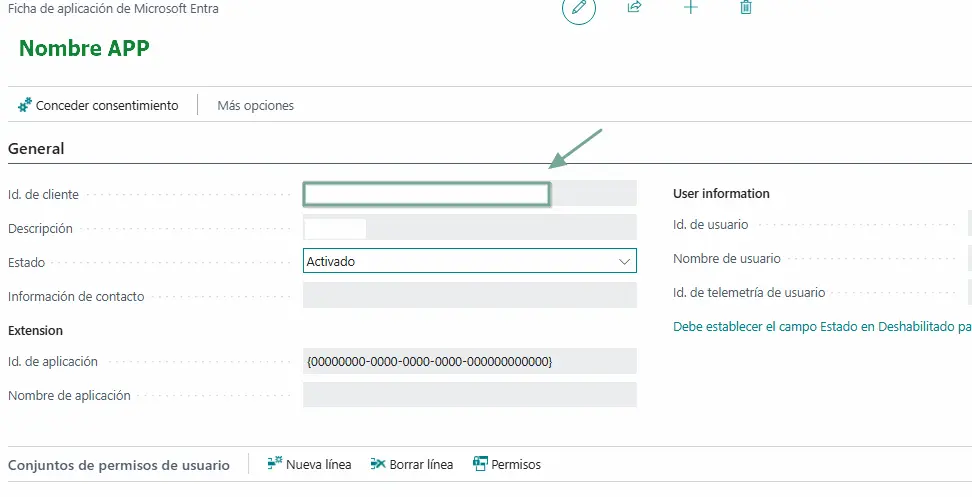
This value corresponds to the Application (client) ID of the application previously registered in Microsoft Entra.
For the Client Secret, on the other hand, we must use the Value we obtained when creating the secret in Azure, not the Secret ID.
Accessing standard BC web services
From the Web Services page in Business Central, we can publish the corresponding page and copy the OData V4 URL field directly:

The address will have a structure similar to this:
https://api.businesscentral.dynamics.com/v2.0/TENANT/ENTORNO/ODataV4/Company('EMPRESA')/SERVICIO_WEBCreating a blank query in Excel
We create a blank query to access Power Query:
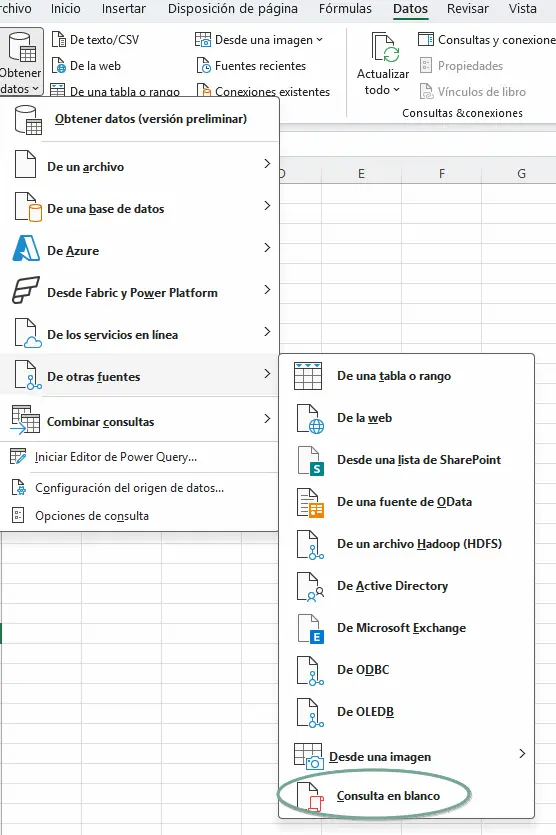
And in “Advanced Editor”, we paste a query with this structure:
let
    TenantId = "TENANT",
    ClientId = "Id. de cliente de la APP de BC",
    ClientSecret = "Valor obtenido al registrar la APP en Azure",

    BusinessCentralUrl = "Pegar la URL de OData V4 de Business Central",

    Token = Json.Document(
        Web.Contents(
            "https://login.microsoftonline.com/" & TenantId & "/oauth2/v2.0/token",
            [
                Headers = [#"Content-Type" = "application/x-www-form-urlencoded"],
                Content = Text.ToBinary(
                    Uri.BuildQueryString([
                        client_id = ClientId,
                        client_secret = ClientSecret,
                        scope = "https://api.businesscentral.dynamics.com/.default",
                        grant_type = "client_credentials"
                    ])
                )
            ]
        )
    )[access_token],

    Origen = OData.Feed(
        BusinessCentralUrl,
        [Authorization = "Bearer " & Token],
        [Implementation="2.0"]
    )
in
    Origen
At the top, we only need to replace the four required values:
TenantId = "TENANT",
ClientId = "Id. de cliente de la APP de BC",
ClientSecret = "Valor obtenido al registrar la APP en Azure",

BusinessCentralUrl = "Pegar la URL de OData V4 de Business Central",
This way, we can easily reuse the same structure for different environments or web services.
The important thing to understand is that we are not accessing the data with a user account; it is the Microsoft Entra application itself that authenticates.
The first time we run the query, Power Query may ask us which credentials we want to use to access the different sources. In this case, we must select Anonymous.
Note: if we previously connected Excel to Business Central using a user account, we may need to remove the credentials previously stored for Business Central.
Permissions are still controlled from Business Central
Using Client ID and Client Secret does not mean that the application has full access to Business Central. The connection will have the permissions we assigned to the application from the Microsoft Entra Applications card in Business Central. This way, we can use a technical identity that is independent of any user and specifically control which information it can query.
Be careful with the Client Secret
In this example, we are storing the Client Secret directly inside the Power Query query, so it is useful for testing and understanding how authentication works. However, we must keep this in mind before distributing an Excel file of this type, since any user with access to the file (specifically, to the file’s Power Query) could view the stored Client Secret. Therefore, although this method prevents the connection from depending on a user account, we must continue to treat the Client Secret as a credential and protect it appropriately.
An idea to keep thinking about.
Explore more articles →