
How to connect Power BI directly to Business Central without using Power Query
Power BI has a standard connector that provides direct access to Business Central data, without having to manually create queries in Power Query or configure web services.



In previous articles, we looked at how to make similar connections from Excel, both using a user account and with a Client ID and Client Secret. This time, we’ll look at a much simpler alternative from Power BI Desktop.
This connector lets you browse the different Business Central environments and companies, and query both Microsoft’s standard APIs and any custom APIs we have developed. It works quite well if you’re looking to create a quick, simple dashboard. All you’ll need is a Power BI license and a BC user with permissions for the tables you want to connect to.
Connecting Power BI to Business Central
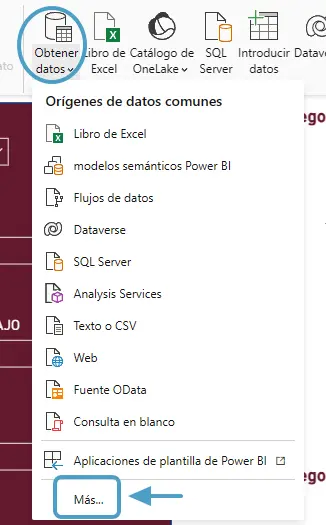
In Power BI Desktop, select Get data → More.
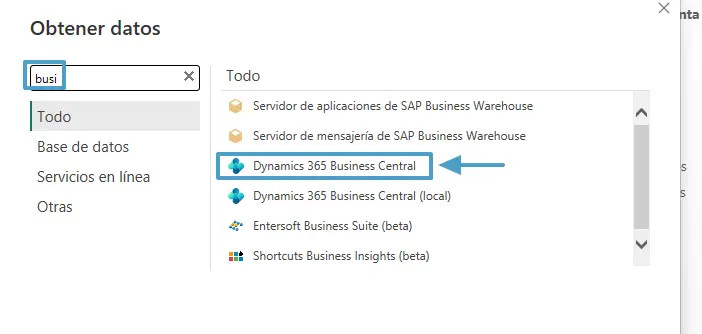
In the search box, type “Business” and select the Dynamics 365 Business Central connector.
The first time we connect, we’ll need to authenticate with an account in the customer’s tenant that has access to Business Central. It is important that this user has the necessary permissions to query the companies and tables we want to use.
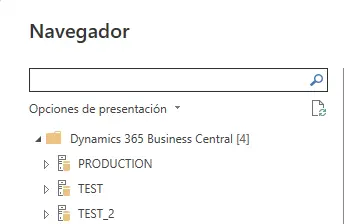
Once authenticated, all the environments available to that user will appear, along with the companies they can access within each environment.
Standard Business Central APIs
Within each company, we find the Standard APIs v2.0 section, where Microsoft publishes different entities for querying Business Central data.
For example, we can directly access customers, vendors, items, G/L accounts and ledger entries, among others.
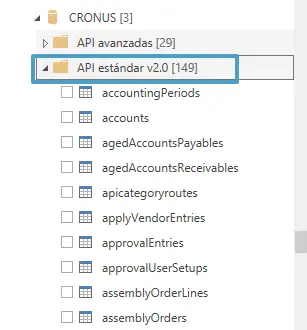
Simply select the entity you need and click Load to add its data to the Power BI model.
Custom APIs
However, we are not limited to Microsoft’s standard APIs. We can also develop our own APIs in AL to expose any information we need.
These will appear in the Advanced APIs section, grouped according to the configuration we defined during development.
For example, in this case we have a custom currency API within the asmSoft/powerBi/v2.0 group.
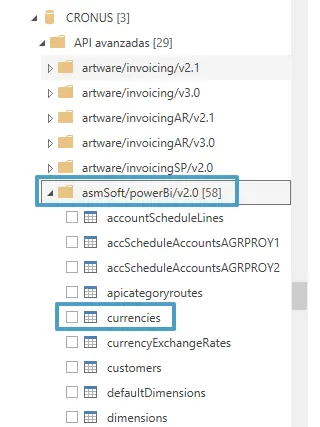
The development is quite straightforward. Here is a simplified example of the currency API:
page 50032 "Asm Currency API"
{
    PageType = API;
    Caption = 'Currency API';
    APIPublisher = 'asmSoft';
    APIGroup = 'powerBi';
    APIVersion = 'v2.0';
    EntityName = 'currency';
    EntitySetName = 'currencies';
    SourceTable = Currency;
    DelayedInsert = true;
    Editable = false;
    DataAccessIntent = ReadOnly;

    layout
    {
        area(Content)
        {
            repeater(Control1)
            {
                field(code; Rec.Code) { }
                field(description; Rec.Description) { }
                field(isoCode; Rec."ISO Code") { }
                field(symbol; Rec.Symbol) { }
            }
        }
    }

    trigger OnOpenPage()
    var
        lLanguage: Codeunit Language;
    begin
        GlobalLanguage := lLanguage.GetLanguageId('ESP');
    end;
}
Here is a little trick we often use when developing APIs for Power BI:
GlobalLanguage := lLanguage.GetLanguageId('ESP');This statement forces Spanish to be used while the API runs, regardless of the language configured for the user making the connection.
It is useful when working with translatable text or values that Business Central returns based on the session language. However, it does not translate text already stored in the tables. We often use it for typical “Document Type” fields, so that the values appear in Spanish (Factura, Abono) rather than English (Invoice, Credit Memo).
The main advantage of using these connections is that we do not have to set up the connection manually. Although Power BI still uses Power Query internally, we can directly select the Business Central entities we want to consume, both standard and custom.
An idea to keep thinking about.
Explore more articles →