
How to review event subscriptions in Business Central
With the move to Business Central SaaS, we can no longer modify Microsoft's standard code directly. Event subscriptions are therefore one of the main tools available to us for changing how the application behaves.

An event subscription lets us run our own code when a particular action occurs in Business Central, without having to modify the standard application. For example, imagine we want to run a check every time a customer is created. Business Central provides an event called OnAfterInsertEvent, which is raised after a record is inserted into a table. We subscribe to that event and specify which code we want to run when it occurs, so that Business Central automatically runs our custom code whenever a customer is created.
And doing this from VS Code is quite straightforward. We simply need to create a subscription like this inside a codeunit:
[EventSubscriber(ObjectType::Table, Database::Customer, 'OnAfterInsertEvent', '', false, false)]
local procedure CustomerOnAfterInsert(var Rec: Record Customer; RunTrigger: Boolean)
begin
    // Código personalizado
end;
How to review event subscriptions
If we are working on a small project or one with few customizations, and we have access to the source code, a simple way to find subscriptions is to open VS Code and search directly for EventSubscriber.
The problem arises when we work on projects with too many custom extensions (including third-party ones). In these cases, it becomes difficult to locate all the subscriptions running in Business Central. For example, you might remember creating a subscription to a particular event but not know exactly which extension you published it in. Or you might not even have access to the source code of some of the installed applications.
And this can be a problem when we are trying to track down the source of some unexplained behavior. For example, imagine that modifying a customer triggers a check we do not recognize. That logic may come from an event subscription in an installed extension, even if we do not have access to its code.
Well, I recently realized that BC lets us view these subscriptions directly within the application itself.
Reviewing subscriptions directly from Business Central
The “Extension Management” page has a button that lets us view the event subscriptions for each installed extension.
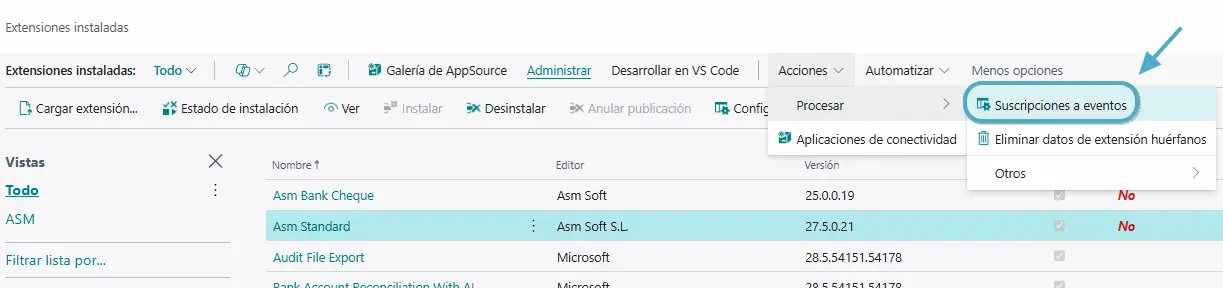
Selecting it opens a page with all the subscriptions associated with that extension. Here we can view information about the event, the object that publishes it, the subscribing codeunit, and the function that runs.
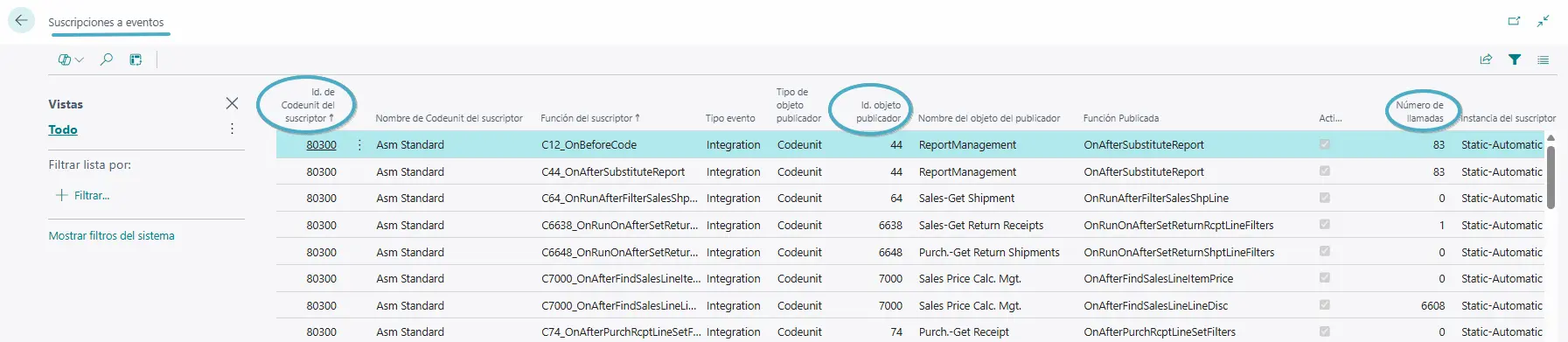
But what makes this page interesting is that we can select “Show system filters” and remove the filter for the extension itself, which corresponds to the “Originating Package ID” field. This lets us view all the subscriptions registered in our environment, including those in Microsoft’s standard application and other installed applications, instead of just those belonging to a single extension.
Personally, I find these fields particularly useful:
- Subscriber Codeunit ID: identifies the codeunit containing the code that will run. For example, we can apply a
50000..filter to find potential custom developments. However, bear in mind that this filter does not guarantee that all the subscriptions are custom, or that all customizations fall within that numbering range, although most do. - Publisher Object ID: lets us find subscriptions associated with a particular table, codeunit, or other object.
- Number of Calls: specifies how many times the event subscriber function has been called. In other words, it tells us how many times that subscription has run during the period tracked by the system. Bear in mind that this is not a permanent history, and the counter does not guarantee that the process completed successfully.
I also find the “Originating App Name” field useful for identifying which extension each subscription belongs to, along with “Active”, which lets us check whether the subscription is active.
In fact, we can open this page directly without first going to “Extension Management”. It is the standard page 9510 - Event Subscriptions, so we can open it by adding ?page=9510 to the URL of our Business Central environment.
When can this be useful?
Beyond checking which subscriptions we have installed, I think this page is particularly useful when investigating an error or unexpected behavior in Business Central.
For example, imagine we are posting a sales invoice and receive an error that we do not recognize as coming from the standard application. Before reviewing all the installed extensions or searching for the code causing it, we can check the subscriptions related to the objects involved in posting. This allows us to identify which applications are adding custom logic to that process.
And the best part is that we can do this without accessing the source code of each extension, which is quite useful when working with third-party applications or encountering customizations we did not develop ourselves.
An idea to keep thinking about.
Explore more articles →