
How a customer's balance relates to the general ledger in Business Central
In Business Central, you can check a customer's balance directly on their card, but how can you find out which G/L account holds that balance?

Although a customer’s entries are normally always posted to the same G/L account, certain configurations allow several accounts to be used for the same customer. And this is important to bear in mind, especially when comparing subledger balances (customer ledger entries) with general ledger balances.
The customer posting group
Today I’d like to focus on the “Customer Posting Group” field on the customer card, which determines which G/L account their entries are posted to. In other words, the account that will hold the amount that customer “owes us” when an invoice is posted.
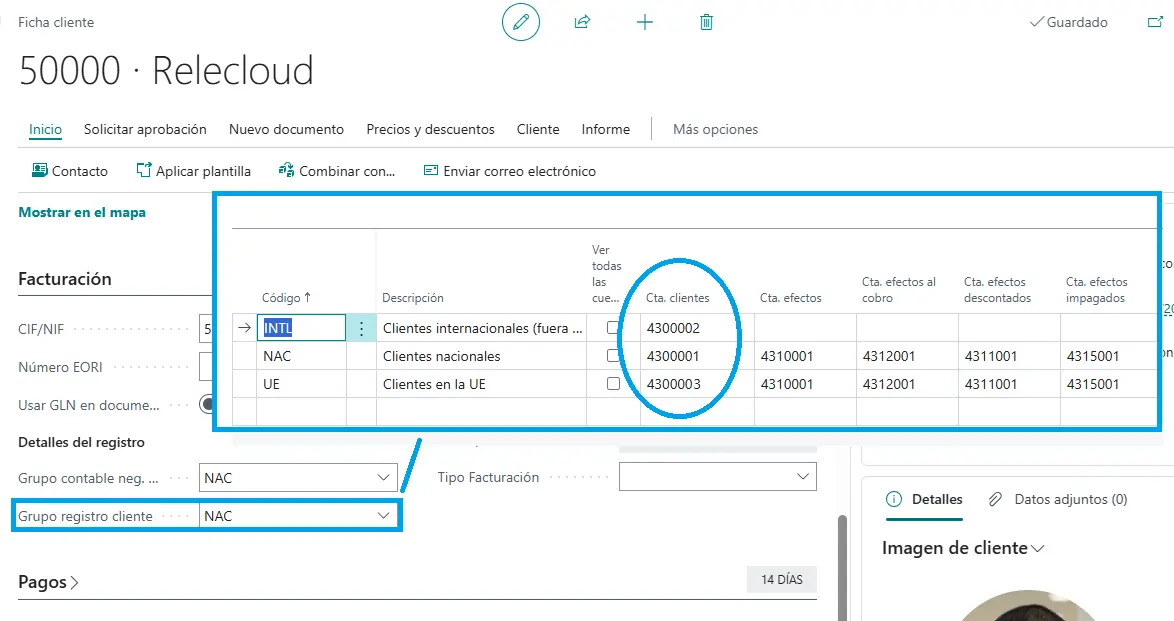
As you can see in the image, each customer posting group has an associated G/L account. So when an invoice is posted, Business Central uses that setup to create the general ledger entry with that account.
In Spain, the General Accounting Plan provides for different accounts to record transactions with customers, although the most common approach is to distinguish between domestic customers, EU customers and customers in other countries. However, this does not mean that a separate G/L account has to be created for each customer.
In fact, using a separate G/L account for each customer usually makes little sense in Business Central, since the ERP has its own subledger where you can check their entries, balances, due dates and outstanding documents. In other words, you can have hundreds of customers in Business Central, all posting their balances to the same account, 4300000.
BC is an ERP with fully integrated subledgers and general ledger, so this does not mean you cannot look up a specific customer’s entries from the general ledger.
Checking a customer’s balance through general ledger entries
General ledger entries have the “Source Type” and “Source No.” fields, which identify where each entry comes from. And these are precisely the fields we can filter on to find out what has happened in the general ledger for a particular customer in the subledger.
Note: it is important to also filter by the G/L accounts that hold customer balances, since an invoice creates other accounting entries, such as revenue or VAT, which may also have the same source number.
For example, to check the general ledger balance for customer “30000 · School of Fine Art”, you can apply these filters to the general ledger entries:
-
Source Type: Customer.
-
Source No.: 30000.
-
G/L Account No.: 43*.
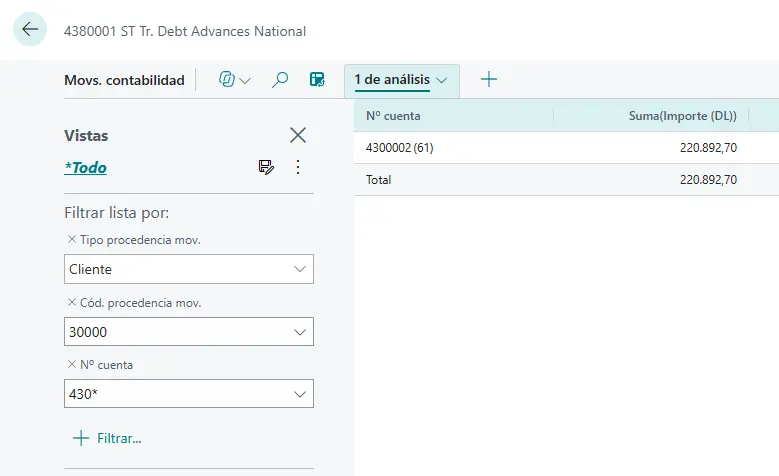
In this case, since the customer’s entries are being posted to the account in group 430, we can deduce that their general ledger balance is 220.892,70 €.
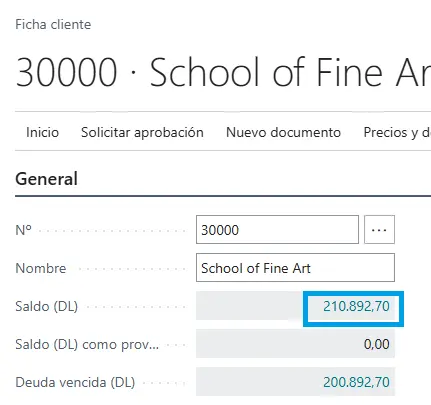
And if you check the balance on the customer card itself, you get exactly the same amount:
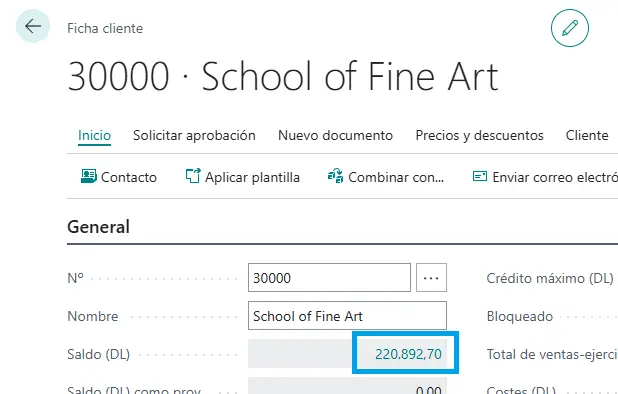
So far, there is nothing unusual. You have the subledger entries on one side and their corresponding general ledger entries on the other, and both balances match.
The problem arises when you assume that all of a customer’s entries will always be posted to the same G/L account.
Multiple posting groups for the same customer
For several versions now, Business Central has allowed multiple posting groups to be used for the same customer.
To do this, you first need to enable the setup that allows multiple posting groups and define which ones can be used as substitutes for the main group.
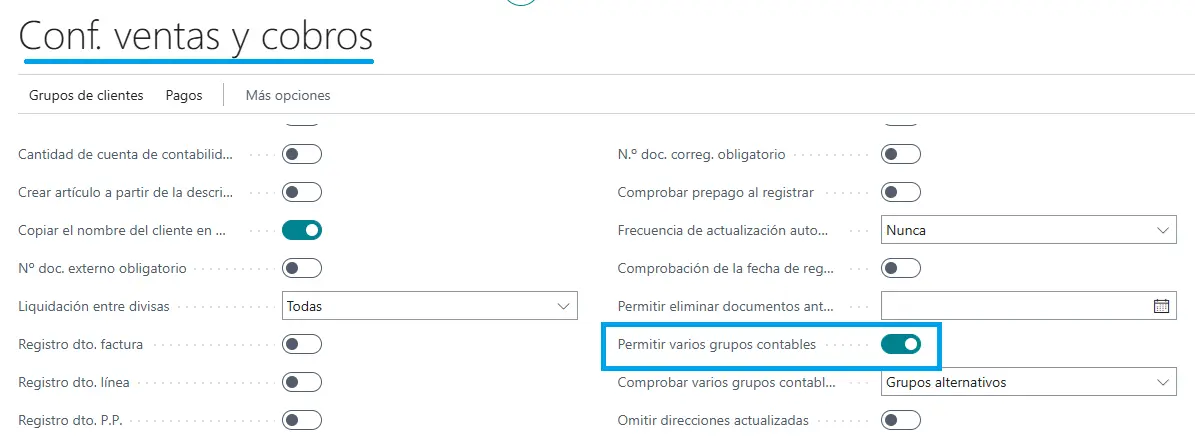
This lets you post different transactions for the same customer using different G/L accounts, without having to create additional customer cards.
Imagine you want to post an advance payment from a customer for 10.000 €, but you do not want to post it to their usual account in group 430 (in fact, that would not be correct). All you need to do is create a new customer posting group called “ANTICIPO” and assign G/L account 4380003 to it.
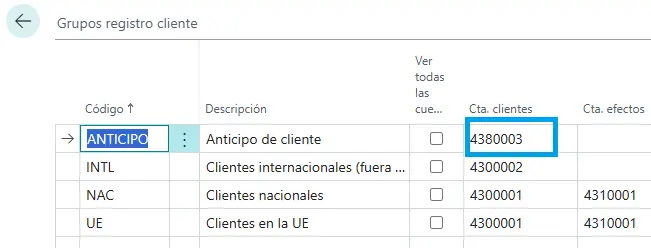
Once configured, you can use this posting group to post the customer’s advance payment.
When the entry is posted, the customer’s subledger balance will be updated by 10.000 €, regardless of which posting group was used.
However, if you now check the general ledger entries, you can see that the 10.000 € has not been posted to the customer’s usual 430 account, but to 4380003, the account defined for the new posting group.
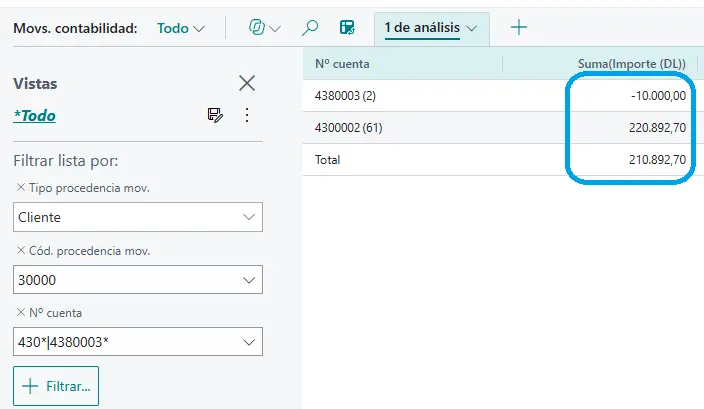
In other words, you have a single customer in the subledger, but their entries are spread across different G/L accounts.
And this is the key point I wanted to get across.
It is important to bear in mind that a customer’s balance can be spread across several G/L accounts, even without using alternative posting groups. For example, changing a customer’s posting group does not modify previous entries, so balances can coexist in different accounts. The same happens with the Cartera module and bills, where the balance moves between accounts (collection, unpaid bills, discounting, etc.).
All of this needs to be taken into account when creating reports, queries or analyses in Power BI, since a filter that returns the correct balance today might stop doing so after a configuration change. That is why it is essential to understand how standard Business Central works and consider its different configuration options.
An idea to keep thinking about.
Explore more articles →