
Customer debt reports
A review of Business Central reports for checking customer balances and debt, their filters, and the differences between customer ledger entries and general ledger entries.

Users often want to check information about a particular customer but are unsure which standard Business Central report to run. This article reviews the reports users ask us about most frequently, bearing in mind that, although they show similar information, they do not always address the user’s specific needs.
Reports based on customer ledger entries
Customer Statement
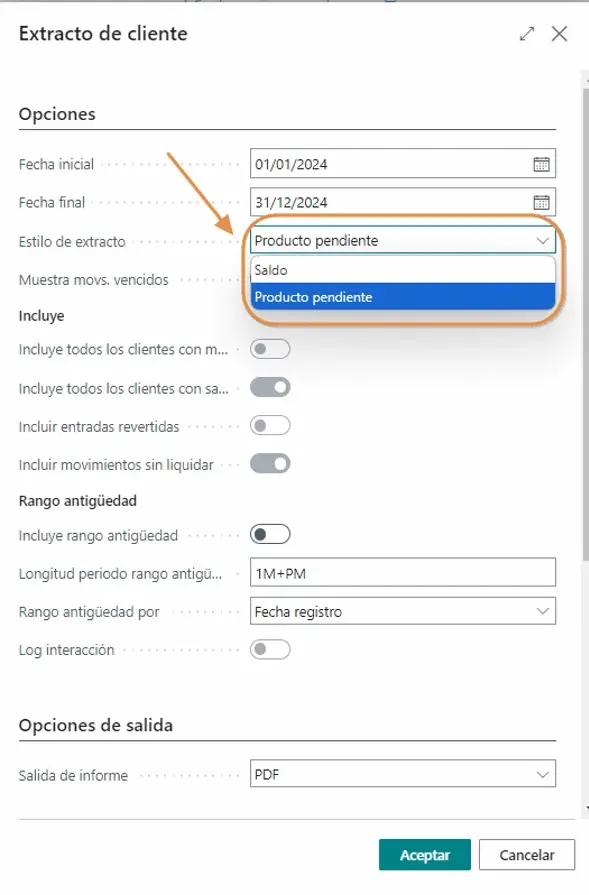
- Selecting “Balance” displays all the entries that make up the customer’s balance.
- Selecting “Open Items” displays only outstanding entries.
This report is particularly useful when we want to review the entries that explain a customer’s balance. Depending on the option selected, we can view all the entries that make up that balance or focus only on those that are still outstanding.
Example showing all entries:
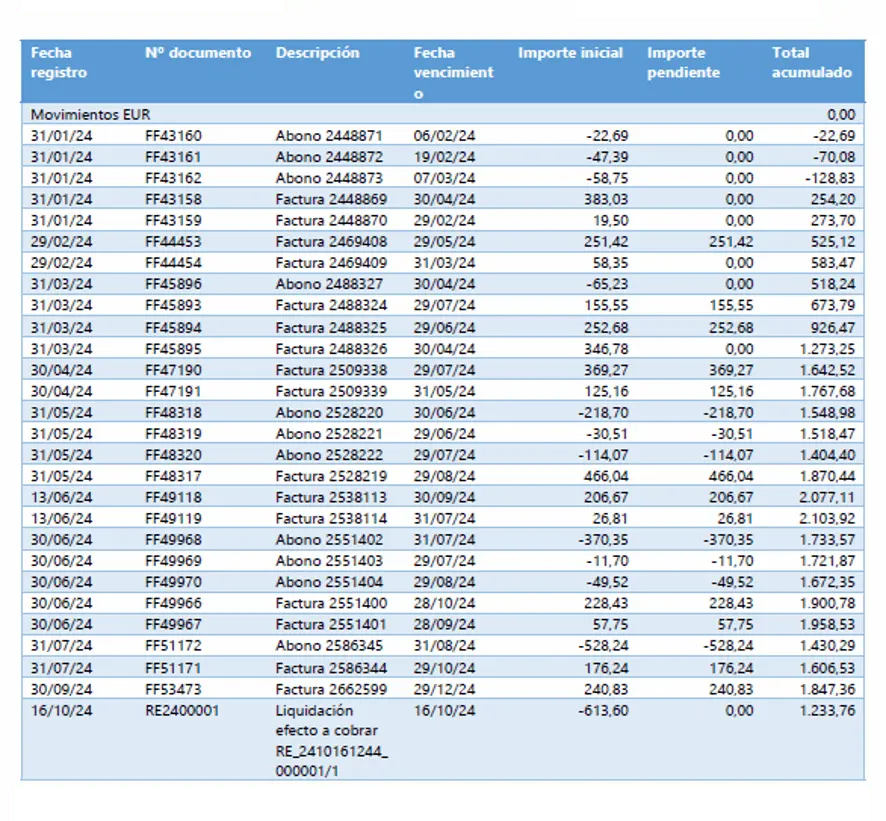
Here we obtain a complete view of the customer’s entries, regardless of whether they are outstanding or have already been settled.
Customer – Balance to Date
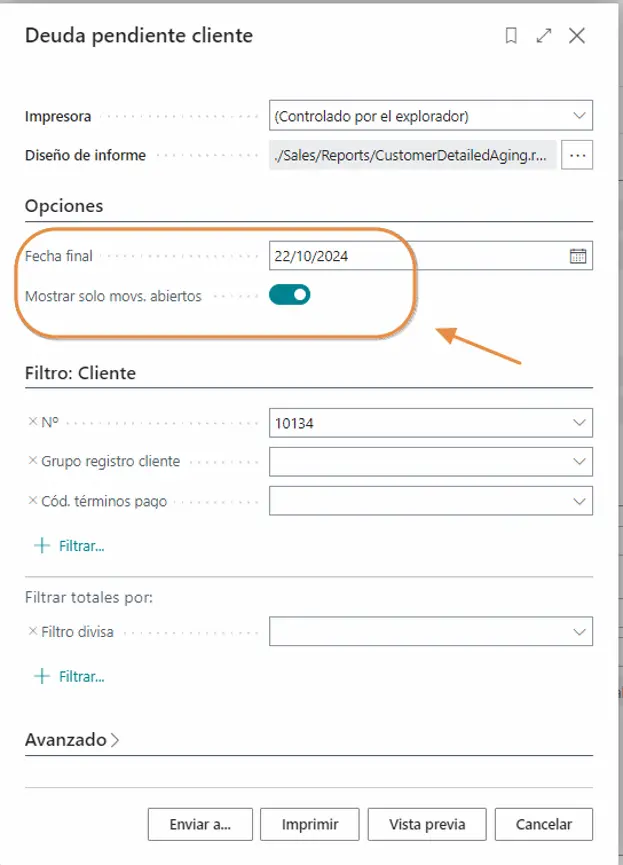
This is similar to the previous report, but the “Ending Date” field lets us obtain, for example, the customer’s outstanding balance as of today. If we also select “Show Open Entries Only”, we will see only the documents the customer has yet to pay as of that date.
This report is particularly useful when we want to know how much a customer owes us on a particular date and which documents make up that debt.
Example showing only outstanding documents up to 22/10/2024:
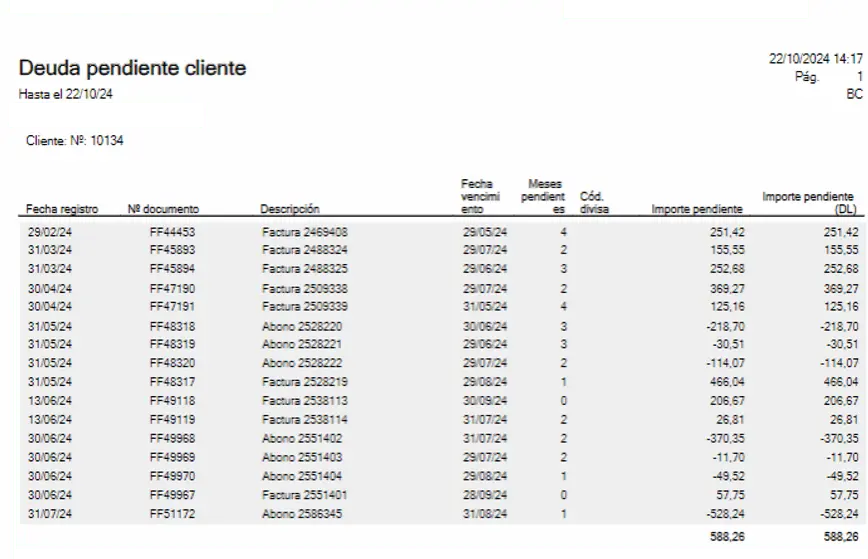
This example provides a snapshot of the customer’s debt on a specific date, showing only the documents that remained outstanding at that point.
Customer Register
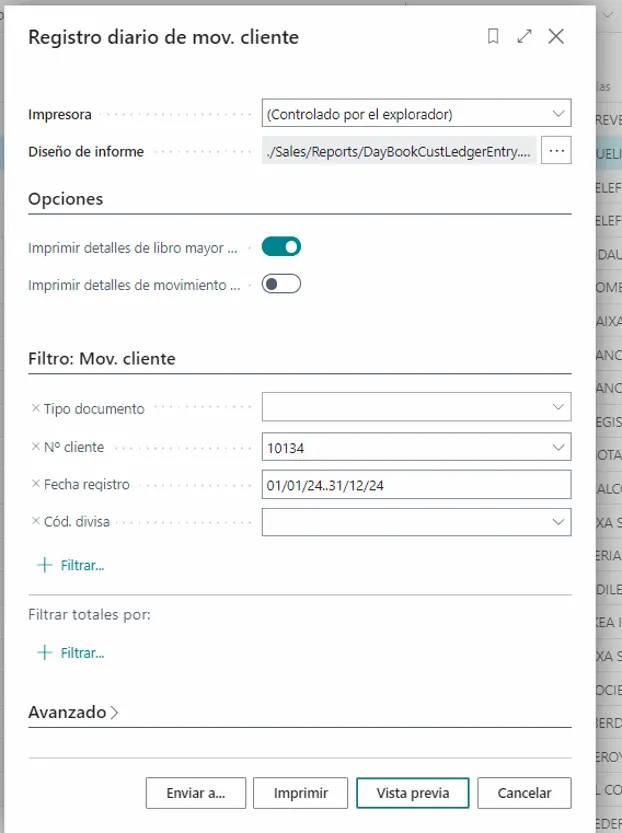
This report is somewhat harder to interpret. It shows the customer’s accounting registers by date. Selecting the relevant checkboxes provides a detailed view including the G/L accounts involved in posting.
This report can be useful when we want to explore the accounting side of a customer’s entries and review the registers and G/L accounts involved in each transaction.
Example:
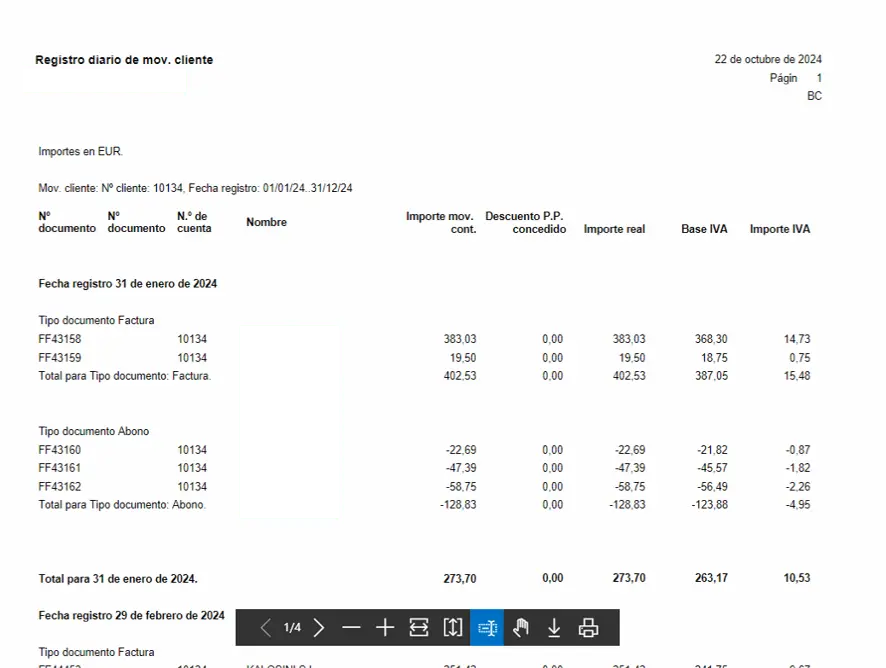
The result lets us follow the different registers by date and, if we request the details, also analyse the G/L accounts associated with each one.
Customer – Detail Trial Balance
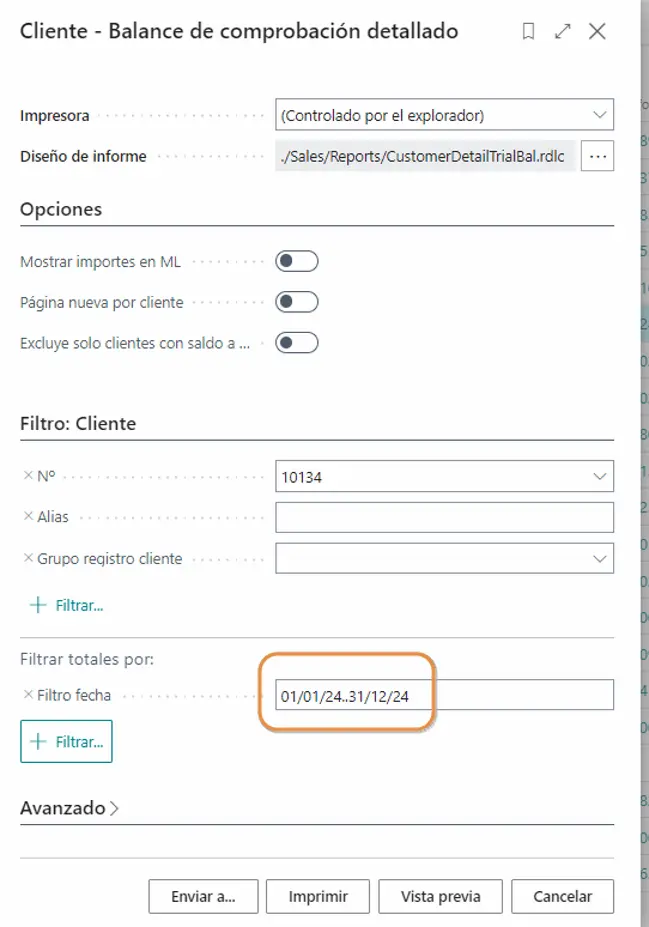
This is similar to the statement. It is the customer’s ledger, and there is no option to restrict the report to outstanding entries. It always prints all entries.
This report is useful when we want to view a customer’s complete ledger and review all their entries, without limiting the result to those that remain outstanding.
Example:
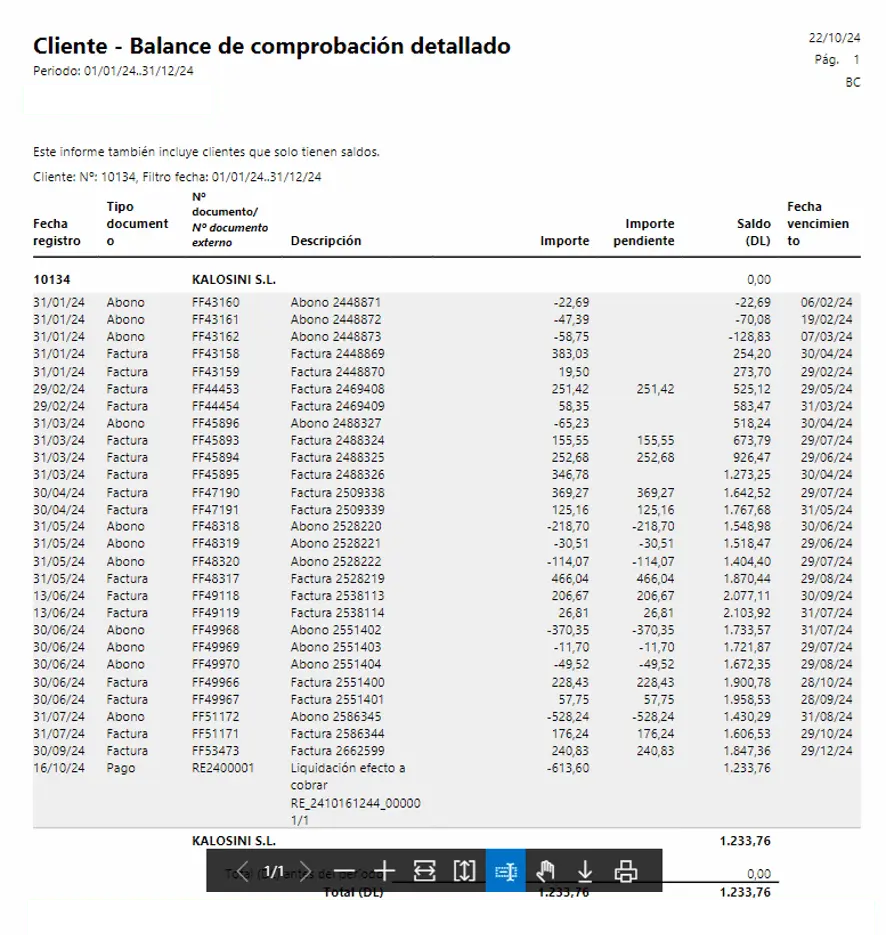
The result lets us browse the customer’s entry history and see how their balance has developed, including both outstanding entries and those that have already been closed.
Reports based on general ledger entries
These can be found in the chart of accounts:
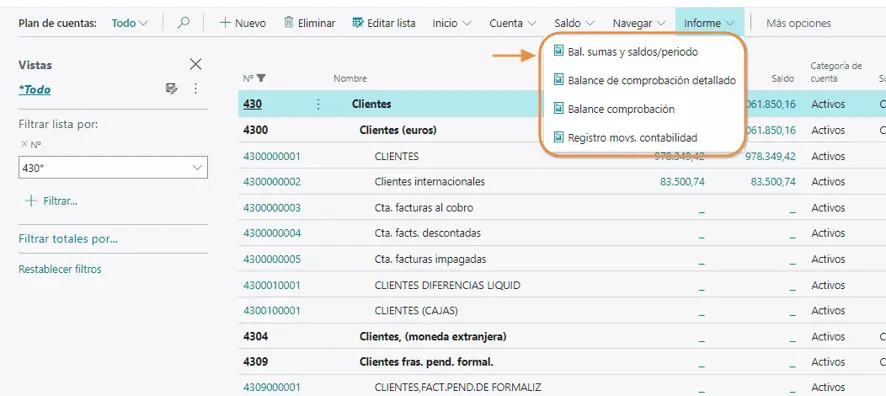
Unlike the previous reports, these are based directly on general ledger entries. This matters because it changes both the source of the information and the filtering options available to us.
Detail Trial Balance
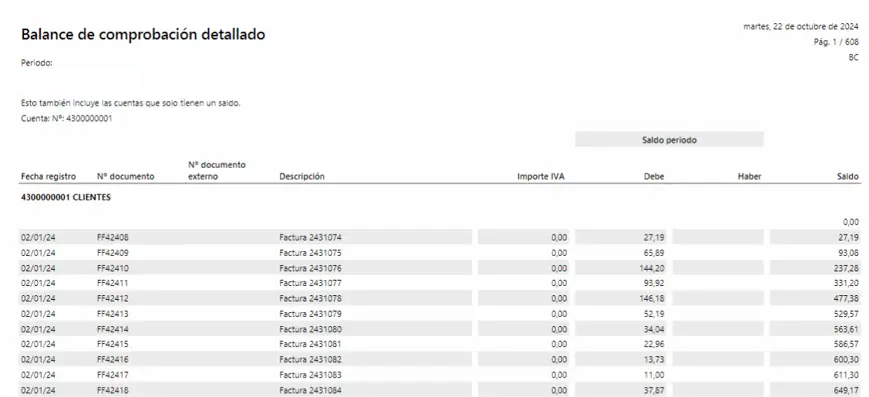
This report provides the entries for the G/L accounts we choose. The limitation is that it only allows filtering on the account table, rather than on general ledger entries, so we get all the entries for all customers mixed together, since they all post to the same account, 4300000.
This report is useful when we want to analyse the ledger of a particular G/L account. However, if several customers use that account, their entries will appear together, and we cannot use this report to isolate a single customer’s entries directly.
G/L Register
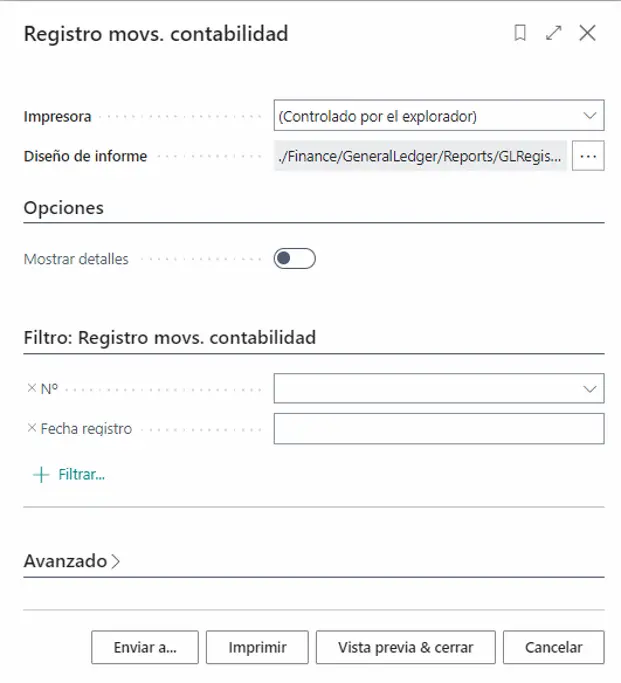
Like the previous report, this provides the company’s general ledger, but we cannot filter by a specific customer or vendor, only by account.
This report is useful when we need to review entries posted to the general ledger and analyse the ledger of a particular account. Its main limitation arises when we want to start the analysis from a specific customer or vendor.
Example:
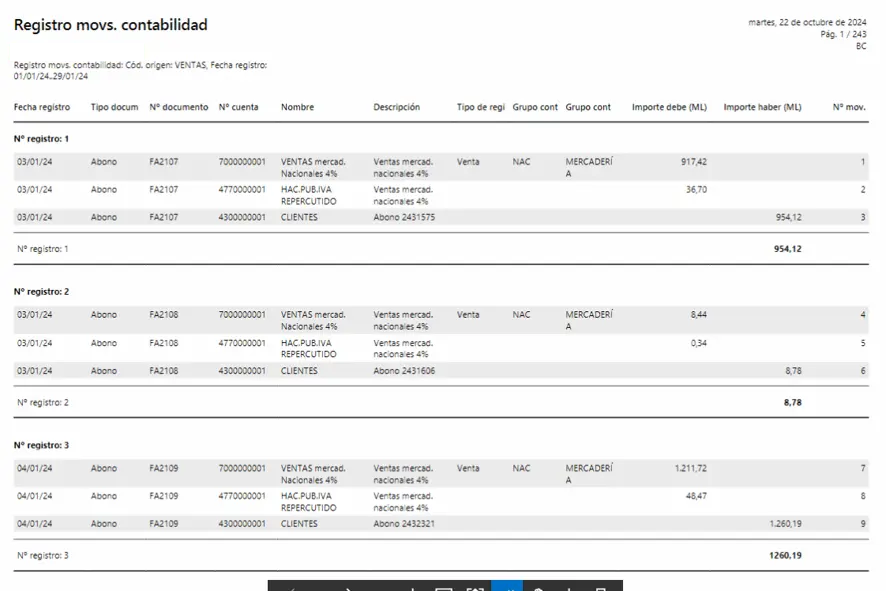
Here we obtain the detailed general ledger entries for the selected account. If the same account contains transactions for different customers or vendors, all those entries will appear together.
Different sources
What makes these reports interesting is not just their printed format, but also understanding which information and filters they use to produce the result. We have already mentioned several times that operational information should agree with the accounting records, and these reports give us an effective way to check that.
An idea to keep thinking about.
Explore more articles →