
Automatic document posting in Business Central using job queues
How to configure document posting and batch report execution using standard Business Central job queues.

In this article, we will see how to configure Business Central to automatically post invoices, credit memos and other purchase and sales documents using job queues, previously referred to as “colas de proyecto” in the Spanish interface.
This functionality is entirely standard and allows us to automate document posting without any development.
Before we begin, it is important to bear in mind that job queues must run under a user account belonging to the customer, with the appropriate permissions and licence. A partner’s delegated administrators can configure and schedule the queues, but cannot run them. This is especially important when we want to carry out tests and only have a delegated administrator account available.
Configuring background posting
On the “Purchases & Payables Setup” and “Sales & Receivables Setup” pages, we have the “Post with Job Queue” field. For example, for purchases:
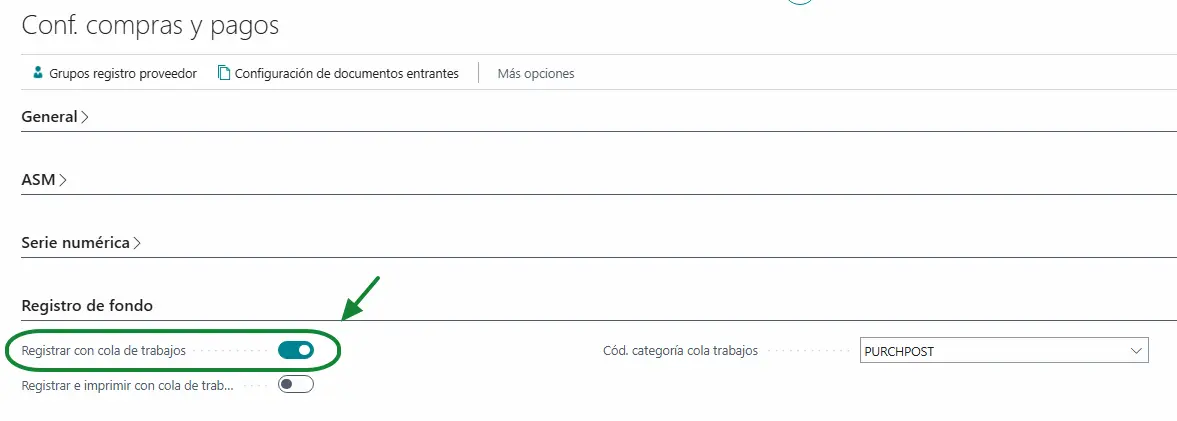
We also specify the Job Queue Category Code, as it is important for grouping queues that perform similar operations, preventing certain processes from running at the same time and potentially causing conflicts.
Once this option is enabled, when a user selects the Post action on a document, Business Central will not post it directly. Instead, it will automatically create a job queue entry to process it in the background. In other words, the user will continue posting documents in the same way, but the posting process will run through the job queue.
Bear in mind that, once this setting is enabled, posting the affected documents will depend on the queue running. If the user does not have the necessary permissions to run this type of process, they will not be able to complete posting in this way. However, the “Preview Posting” option will still be available.
Job queue status on documents
When we enable posting through job queues, we can view the “Job Queue Status” field on the invoice and credit memo pages.
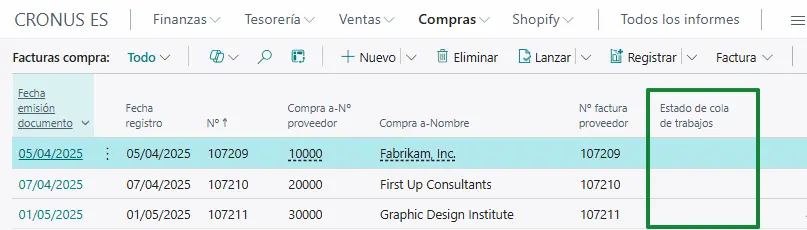
This field is especially useful for identifying documents that could not be posted. For example, if an invoice has a setup issue, a mandatory dimension is missing or there is any other error preventing it from being posted, the field will appear in red with the status “Error”.
We will not always be able to view the error from the document itself when several documents have been submitted for posting in the same batch. For example, if we have 100 documents awaiting posting and the process manages to post 99, the queue with ID 98 (Purchase Post via Job Queue) will appear with an error status in the job queue entries list. However, we will only be able to see that the process did not complete successfully, without obtaining detailed information about the cause of the error, such as a missing mandatory dimension.

This is because queue 498 does not perform the posting directly. Instead, it launches queue 98, which is responsible for running the process.
Therefore, to identify the specific reason for the error, we will need to try posting the affected document individually, using posting preview or posting it manually, without running queue 498. This way, Business Central will display the corresponding error message, and we can correct it before trying to post again.
Configuring a queue for automatic document posting
The first step is to open the Job Queue Entries page and create a new entry:
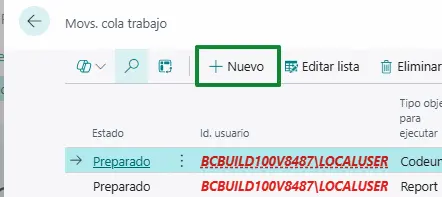
On the entry card, we need to specify the type of object we want to run and its ID.
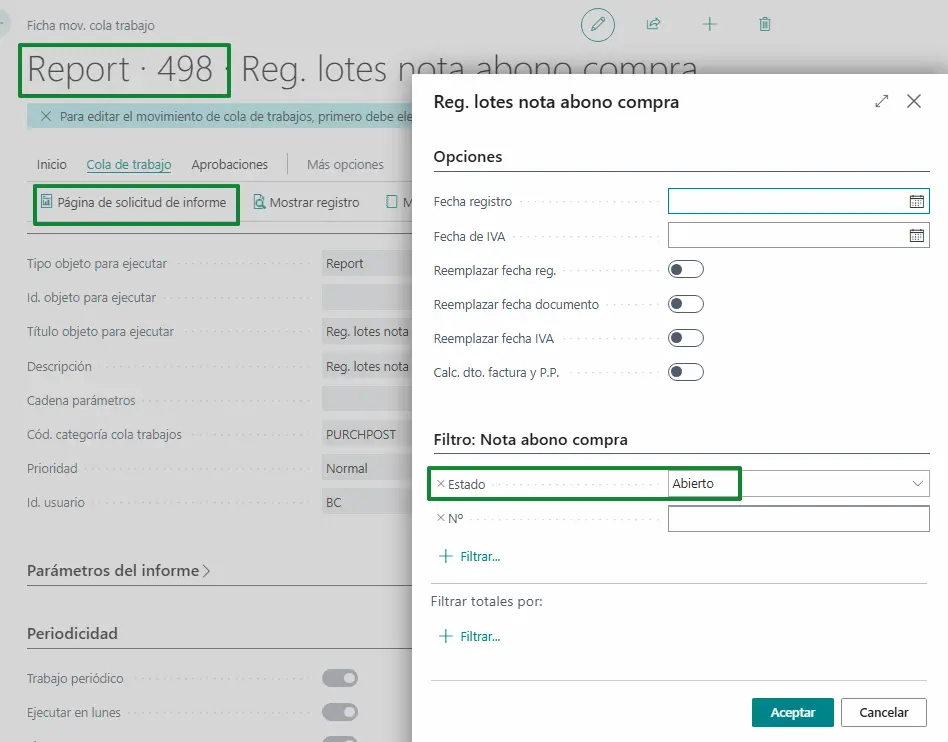
In our example, we will use report 498 – Batch Post Purch. Credit Memos, which allows us to post purchase credit memos in batches. The setup would look something like this:
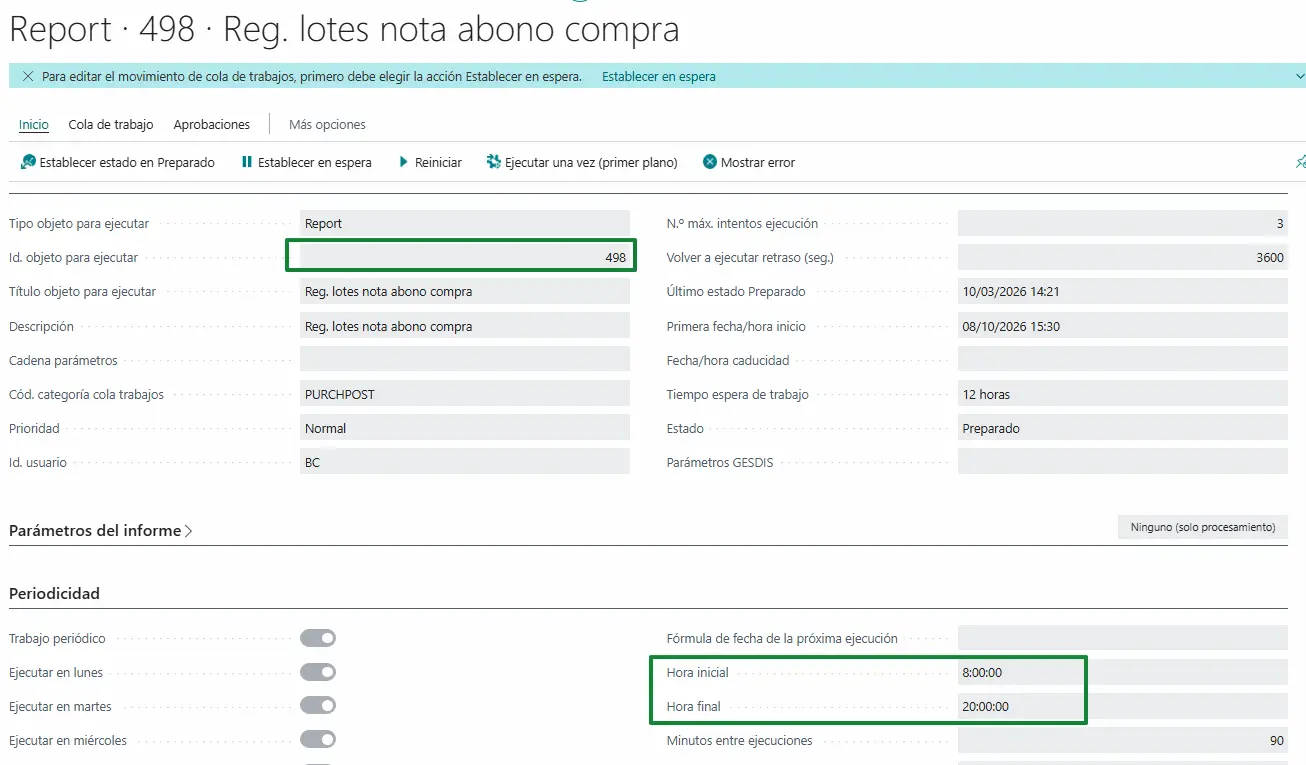
What is interesting about this setup is that we are not developing a posting process. We are using the standard Business Central report directly, which will perform the same validations and operations applied during normal document posting.
Configuring posting filters
One of the most important aspects of this functionality is defining which documents we want to post automatically. To do this, we can use the “Report Request Page” option on the job queue entry card to access the filters that determine which records (documents) will be processed during each run.
It is important to be careful here, as we could post documents that are not yet ready if we do not apply the appropriate filters.
Configuring recurrence
Once we have configured the report and its filters, all that remains is to define when we want it to run.
We could configure a queue to run just once a day, at night or every few hours. It all depends on the needs of the process we want to automate.
This part of the setup falls under the standard operation of Business Central job queues, for which Microsoft provides fairly comprehensive documentation:
Official Microsoft documentation: Use job queues to schedule tasks
Other reports we can use
Although we have used report 498 to post purchase credit memos as our example in this article, Business Central provides other standard reports that we can also run through job queues.
The main ones are:
| ID | Report |
|---|---|
| 900 | Batch Post Assembly Orders |
| 497 | Batch Post Purchase Invoices |
| 496 | Batch Post Purchase Orders |
| 498 | Batch Post Purch. Credit Memos |
| 6665 | Batch Post Purch. Ret. Orders |
| 298 | Batch Post Sales Credit Memos |
| 297 | Batch Post Sales Invoices |
| 296 | Batch Post Sales Orders |
| 6655 | Batch Post Sales Return Orders |
| 6005 | Batch Post Service Cr. Memos |
| 6004 | Batch Post Service Invoices |
| 6001 | Batch Post Service Orders |
Therefore, this functionality is not limited to purchase and sales invoices and credit memos. We can also use it for orders, returns, service documents and assembly orders.
Microsoft lists all these reports and explains how to configure them in its official documentation:
Official Microsoft documentation: Post multiple documents at the same time
Use in integrations
One of the most interesting uses of this functionality is in integrations, as we often encounter scenarios where invoices or credit memos are created automatically through an API, but we also need to post those documents.
With this functionality, we can focus on developing the integration to create the documents, leaving standard Business Central functionality to handle posting.
An idea to keep thinking about.
Explore more articles →