
Automatically posting journals in Business Central using job queues
How to automatically post journal lines in Business Central using a scheduled job queue, without user intervention.

I recently worked on a project where we integrated all kinds of documents and accounting entries into Business Central through APIs. Essentially, we imported information from external systems and created all the necessary standard records so that we could subsequently post them from BC using job queues, previously referred to as “colas de proyecto” in the Spanish interface.
We have already discussed automatic document posting in this article, although we focused on purchase and sales documents rather than general journals. What happens when we want to integrate accounting entries directly into a journal and post them automatically?
We could develop an API that triggers posting directly from an external application, although personally this is not an approach I particularly like. Those entries may need to be reviewed before posting, or we may simply prefer not to expose a posting procedure to an external application. Ideally, the integration would only create the journal lines, and Business Central would then handle posting using its own standard processes.
Background posting of general journals
While reviewing the standard Business Central settings, I came across the “Post with Job Queue” field on the “General Ledger Setup” page.
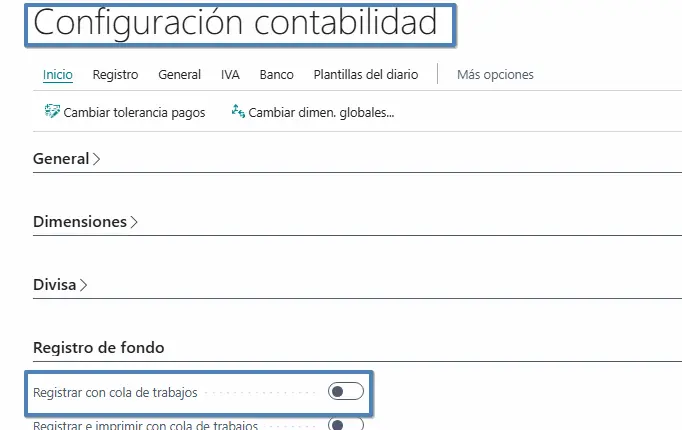
At first glance, it seems to work in the same way as document posting through job queues. In other words, we enable the setting and Business Central automatically posts the journals. But that is not quite how it works.
This functionality is primarily intended to let a user post a journal in the background without having to wait for the process to finish. For example, imagine a company importing a journal with thousands of lines for payroll or accounting transactions. The accountant reviews the information and selects “Post”.
The behaviour depends on the setting:
-
With “Post with Job Queue” disabled: posting runs directly in the user’s session, and the user must wait for it to finish.
-
With the option enabled: Business Central sends the posting task to a job queue for background processing, allowing the user to continue working.
This is useful functionality, but it does not quite solve our problem. We still need someone to open the journal and start posting.
What we need is a job queue that runs on a schedule and posts the entries without user intervention.
Using codeunit 250 to post journals
While reviewing Microsoft’s documentation on how job queues work, I found a possible solution using standard codeunit 250, “Gen. Jnl.-Post via Job Queue”.
This is precisely the codeunit Business Central uses to post journals through job queues. The official documentation is available here:
Job Queue Dispatcher codeunit and the OnBeforeExecuteJob event
How job queues work in Business Central
In principle, this looks as though it should work: we simply create a job queue entry, set it to run codeunit 250 and configure when we want the journal to be posted. However, if we try to run it directly, we will encounter an error, because this codeunit requires a value in the “Record ID to Process” field of the “Job Queue Entry” table.
In fact, if we review its standard code, we can see that it performs the following check as soon as execution begins:
trigger OnRun()
var
    GenJrnlLine: Record "Gen. Journal Line";
    OrigGenJrnlLine: Record "Gen. Journal Line";
    GenJrnlTemplate: Record "Gen. Journal Template";
    BatchPostingPrintMgt: Codeunit "Batch Posting Print Mgt.";
    RecRef: RecordRef;
    RecRefToPrint: RecordRef;
    PrintPostDocuments: Boolean;
begin
    Rec.TestField("Record ID to Process");
In other words, before performing any operation, it checks that the “Record ID to Process” field has a value.
If we manually configure a job queue entry to run this codeunit without providing that identifier, we will get the following error:
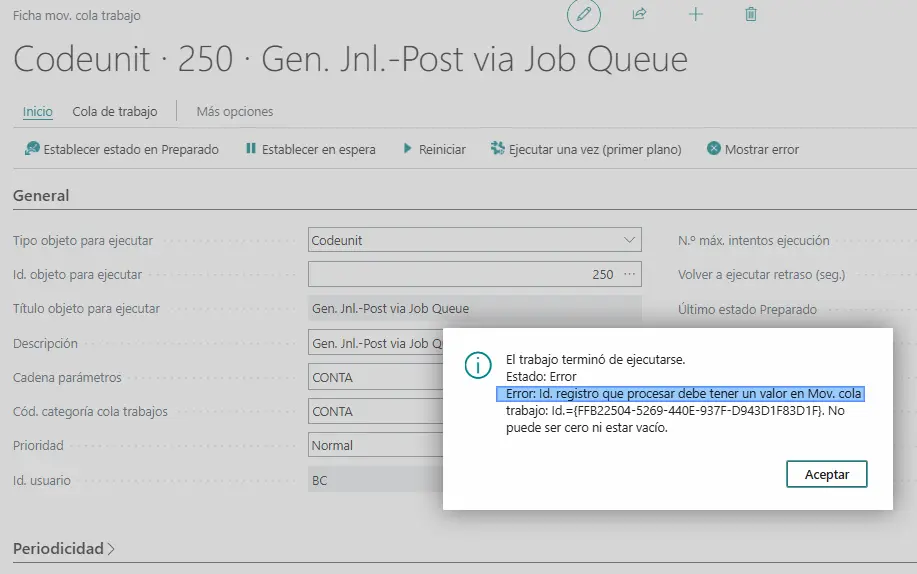
Therefore, specifying codeunit 250 in the job queue entry is not enough. We also need to pass it the identifier of the record we want to process. This is where we need a small customisation, as there is no way to assign the “Record ID to Process” value through the user interface.
Creating our own codeunit to post the journal
One option would be to forget about codeunit 250 and develop our own codeunit to post journal lines directly.
For example, we could implement something as simple as this:
codeunit 50100 "XXX Post Gen Journal Queue"
{
    trigger OnRun()
    var
        GenJournalLine: Record "Gen. Journal Line";
        GenJnlPostBatch: Codeunit "Gen. Jnl.-Post Batch";
    begin
        GenJournalLine.SetRange("Journal Template Name", 'GENERAL');
        GenJournalLine.SetRange("Journal Batch Name", 'DEFAULT');

        if GenJournalLine.FindFirst() then
            GenJnlPostBatch.Run(GenJournalLine);
    end;
}
This code filters the lines in journal template GENERAL, batch DEFAULT, and runs the standard codeunit responsible for posting.
This is a perfectly valid solution, but personally I prefer to use codeunit 250, which already includes the standard behaviour for posting through job queues. Besides, in this case we do not need to change the posting process. We only need to ensure that it receives the identifier it expects.
The OnBeforeExecuteJob event
The solution I used involves subscribing to the “OnBeforeExecuteJob” event in the “Job Queue Dispatcher” codeunit.
When we configure a job queue entry and set its status to “Ready”, BC schedules an internal task using the platform’s task scheduler. When the time comes to run it, the “Job Queue Dispatcher” codeunit takes over and manages the execution of the corresponding job. What is useful here is that this codeunit provides the OnBeforeExecuteJob event, which is raised before the object configured in the job queue entry is run.
This event also receives the “Job Queue Entry” table record by reference, so we can modify its values before our codeunit runs. In my case, I used it to populate the “Record ID to Process” field.
We can do this with an EventSubscriber like the following:
[EventSubscriber(ObjectType::Codeunit,
    Codeunit::"Job Queue Dispatcher",
    'OnBeforeExecuteJob', '', false, false)]
local procedure SetJournalRecordId(
    var JobQueueEntry: Record "Job Queue Entry")
var
    GenJournalLine: Record "Gen. Journal Line";
begin
    if JobQueueEntry."Object Type to Run" <>
       JobQueueEntry."Object Type to Run"::Codeunit
    then
        exit;

    if JobQueueEntry."Object ID to Run" <>
       Codeunit::"Gen. Jnl.-Post via Job Queue"
    then
        exit;

    if JobQueueEntry."Parameter String" <> 'SECURITY_PARAMETER' then
        exit;

    GenJournalLine.SetRange("Journal Template Name", 'GENERAL');
    GenJournalLine.SetRange("Journal Batch Name", 'DEFAULT');
    GenJournalLine.SetRange(
        "Job Queue Status",
        GenJournalLine."Job Queue Status"::" ");

    if not GenJournalLine.FindFirst() then
        Error(
            'No hay líneas disponibles en el diario GENERAL, sección DEFAULT.');

    JobQueueEntry."Record ID to Process" :=
        GenJournalLine.RecordId;
end;
First, we check that the job queue entry runs codeunit 250 and that the Parameter String field contains SECURITY_PARAMETER, to identify the entry we want to customise.
We then filter the journal lines using these values:
-
Template: GENERAL.
-
Batch: DEFAULT.
-
Job queue status: blank.
With these filters, we find the first available line and retrieve its RecordId.
Finally, we assign that value to the “Record ID to Process” field of the job queue entry.
This way, when Business Central continues execution, codeunit 250 will already have the identifier it needs and can run the standard posting process.
One important detail: codeunit 250 uses that line as a reference and then filters by template, batch and document number. Therefore, it does not necessarily post all the journal lines, only those associated with the selected document number.
Example of automatic journal posting
First, we prepare a general journal with several accounting entries. In this example, we have two different document numbers, each with its corresponding journal lines.
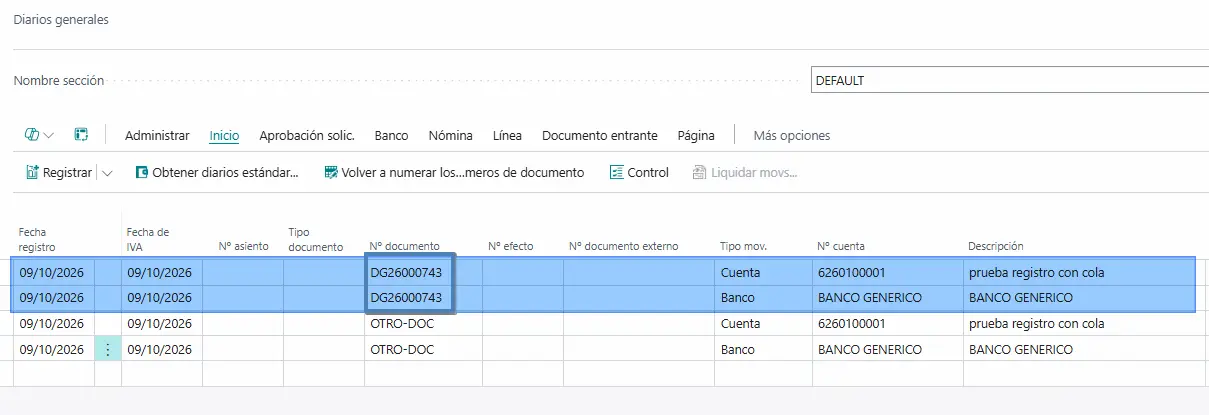
As mentioned, codeunit 250 posts by document number. Therefore, when we select a line for document DG26000743, it will attempt to post the lines associated with that document, excluding those belonging to OTRO-DOC.
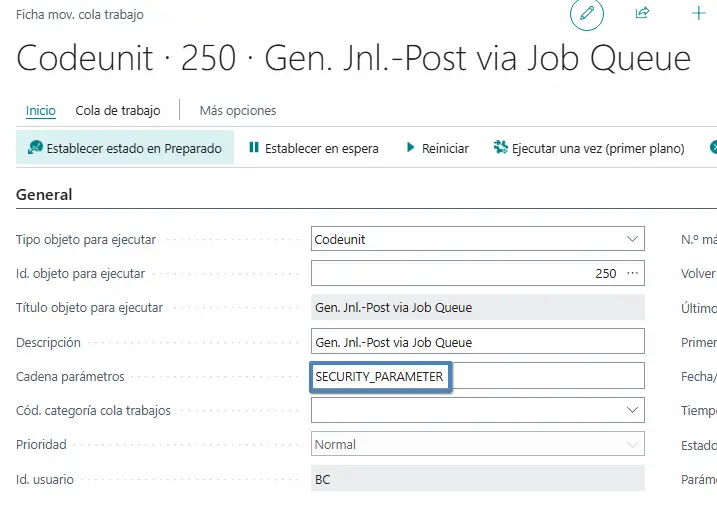
Once the journal is ready, we create a job queue entry with the object type set to Codeunit and the object ID set to 250, and populate the “Parameter String” field with the value defined in our customisation: SECURITY_PARAMETER
Checking for errors during posting
For example, if the journal lines do not balance or contain incorrect data, the process will return the corresponding errors.
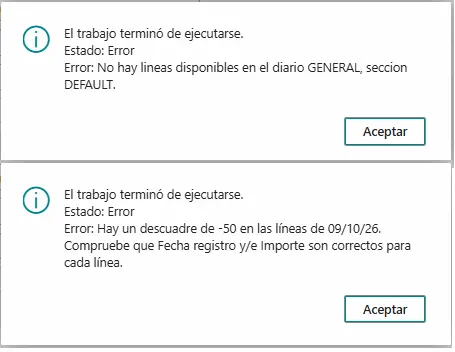
In other words, even though we are running the process from a job queue, Business Central still applies its usual accounting checks.
Successfully posting the journal
If we correct the errors and run the job queue entry again, Business Central will start posting.
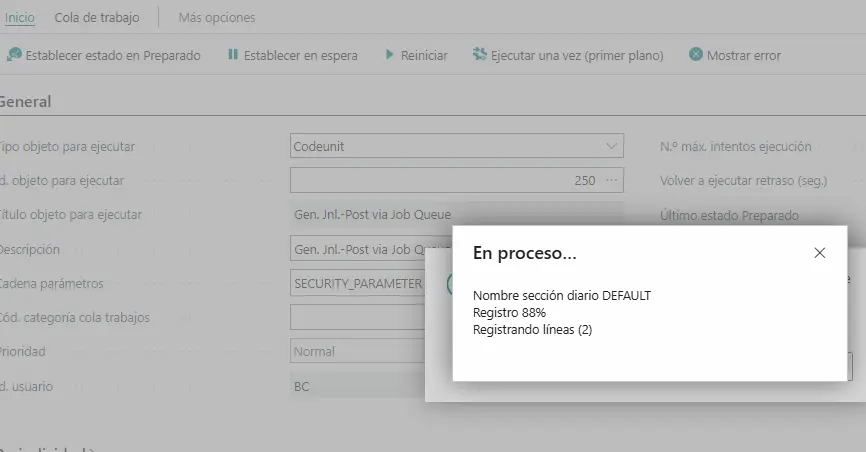
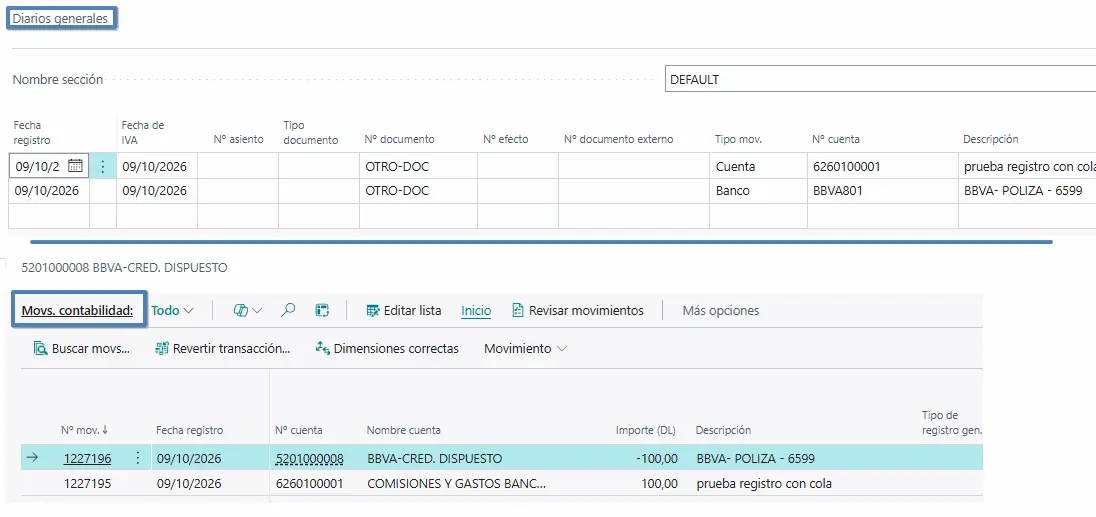
As we can see, the entries have been posted successfully and the processed lines have disappeared from the journal, just as they would if we had posted them manually.
Additional considerations
The first point is that we are working by document number. Codeunit 250 is not intended to automatically process all documents in a batch in a single run. In our example, the EventSubscriber finds an available line, and the standard code posts the lines associated with that document.
The second point concerns control over the entries we want to post. In the example, we filter directly on journal template GENERAL, batch DEFAULT, but we could extend the customisation to determine which journals should be processed or add further checks.
In other words, some details would need adjusting in the final implementation, but this approach provides a useful way to understand how job queue posting works for general journals.
An idea to keep thinking about.
Explore more articles →