
3 ways to download the standard Business Central code
When working with Business Central, we often need to consult Microsoft's standard code to review tables, fields and events, or understand how a particular process works.

1. Download the full repository from GitHub
Microsoft publishes the Business Central source code in its official repository (https://github.com/microsoft/BCApps), so we simply need an account to sign in to GitHub and then go to Code - Download ZIP to download the full repository.
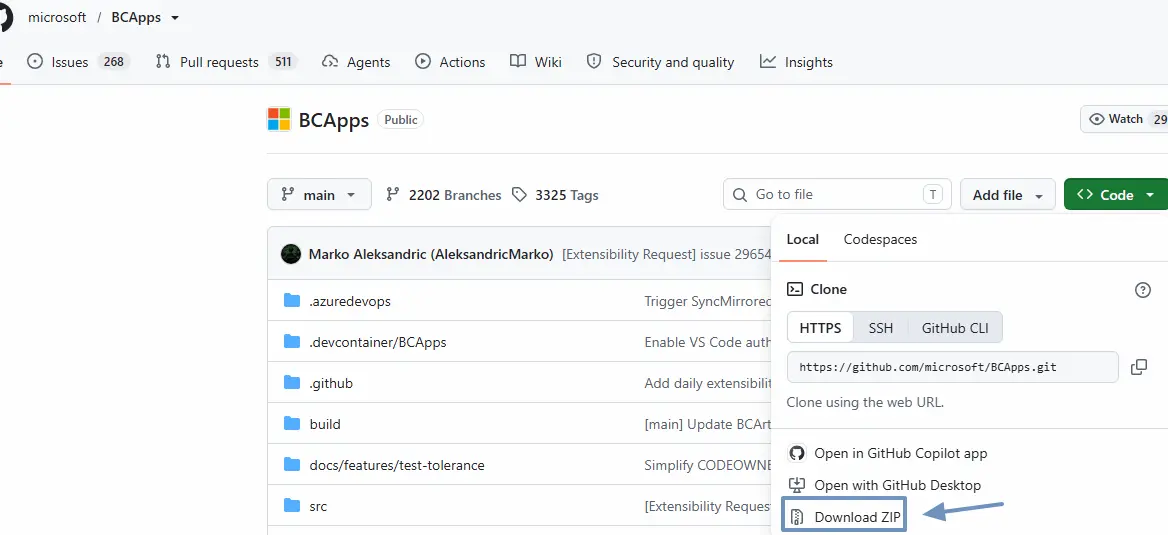
Once extracted, we will find the different applications and localisations. For example:
src/Layers/W1/BaseApp: standard international code.src/Layers/ES/BaseApp: Spain-specific code.src/System Application: system functionality.
This option is useful for consulting the source code published by Microsoft, although we need to bear in mind that the main branch may include changes intended for future releases. In other words, we cannot always be sure that the code we are analysing matches the version of Business Central we are working with.
That is why, in my opinion, this option is particularly useful for investigating new functionality and analysing changes that Microsoft is introducing but that are not yet available in the versions our customers use.
2. Download the repository using Git
Another option is to use Git on our computer and clone Microsoft’s official repository directly.
To do this, we need to have Git installed and run the following command from a terminal:
git clone https://github.com/microsoft/BCApps.gitAlternatively, we can open Git Extensions directly and clone a new repository:
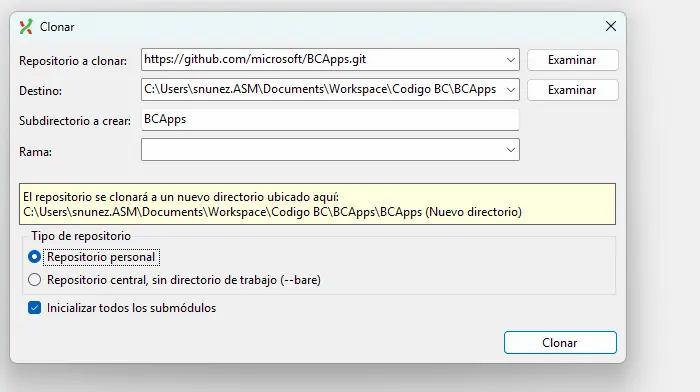
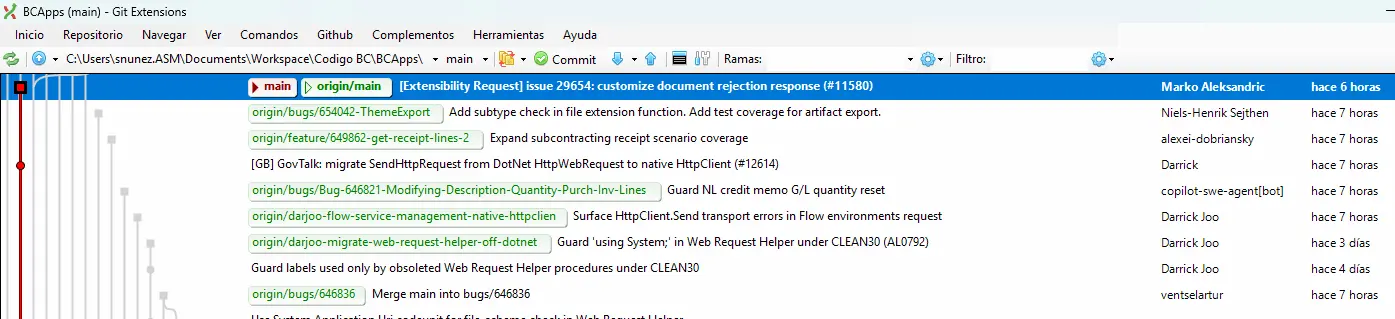
This gives us a local copy of the repository, which we can open directly in Visual Studio Code.
The advantage over downloading the ZIP is that we can keep the code up to date by running git pull, as well as viewing the change history and working with different branches or versions. It is a more convenient way to work locally, and I find it particularly helpful for seeing specific changes in individual objects.
3. Extract the code from Visual Studio Code symbols (my recommended option)
This is the option I use most often, mainly because it lets me obtain the reference code for the version of Business Central I am working with, without having to download the entire GitHub repository. This way, I can be sure that the code I am analysing corresponds to the version of the customer’s environment for which I am planning the customisation, avoiding potential differences with other versions of the standard application.
The process is quite straightforward:
- Open an AL project in Visual Studio Code, connected to the Business Central environment we want to consult.
- Run the
AL: Download Symbolscommand from the command palette (Ctrl + Shift + P). - Once the symbols have been downloaded, go to the
.alpackagesfolder in our project. - Locate the file for the base application. For example,
Microsoft_Base Application_24.5.23489.25263.app. - Using 7-Zip, right-click the file and select
Extract Here. - Within the extracted contents, we will find a
srcfolder where we can consult the source files or object definitions included in the package.
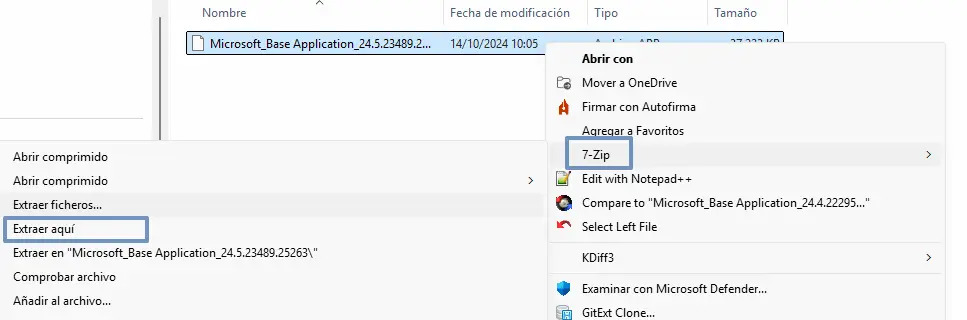
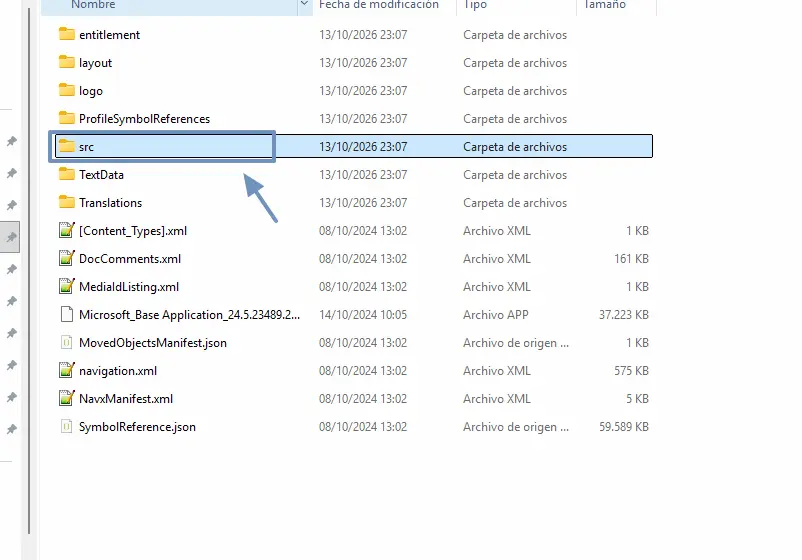
What makes this method useful is that we are downloading the symbols for the version our environment uses. For example, if we are working with BC24.5, we can consult the definitions for that version rather than the changes Microsoft is currently introducing into main.
An important distinction: symbol packages do not guarantee access to all the source code. We can consult object definitions and, when the package includes the source files, their implementation as well. If we need to review the complete AL code, the official GitHub repository remains the best reference.
All three options are valid, but I personally prefer the third for day-to-day work. It is much quicker if you usually have Visual Studio open, does not require Git and lets you consult the definitions of tables, fields, pages and procedures for the specific version you are developing against. If you also connect it to Codex, you have a powerful assistant for reading and interpreting BC code. What makes this useful is that Codex can work directly with the files in your project, so its answers can be based on the code for the specific version you are using, rather than being limited to generic explanations of Business Central.
An idea to keep thinking about.
Explore more articles →