
Business Central licenses - How to configure a Device license
Business Central offers different types of licenses, each with its own features and limitations. Although Essentials is the usual choice, Microsoft offers other options that can help us reduce licensing costs.


Today I would like to talk about one of them, the Device license, since it works somewhat differently from the others and requires a different setup. But first, let us briefly review the available license types.
Types of Business Central licenses
- Essentials: The usual Business Central license, providing access to practically all ERP features. This is the license we normally ask our clients to purchase.
- Premium: Includes all Essentials features and adds the advanced manufacturing and service management modules. However, since the introduction of assembly orders (years ago, back in Navision), which are already included in Essentials, many companies can meet their manufacturing needs without moving to Premium.
- Team Member: A more affordable license, mainly intended for viewing information and performing specific operations, such as editing existing records, creating quotes, approving requests, or recording project hours. It does not allow users to create orders or post invoices or journal entries. Useful for sales representatives or salespeople.
- External Accountant: A free license (up to 3 per tenant) intended for external advisers and accountants, with practically the same features as Essentials, except for certain administrative tasks. The good thing about this license is that you can share it with an email address outside your organization.
- Device: A license for devices shared by multiple users, particularly in warehouses, production plants, or points of sale. This is the one we will look at in this article.
- Microsoft 365: Allows users to view Business Central information from Microsoft Teams without purchasing a specific BC license, provided they have a compatible plan. Access is strictly read-only.
Official Microsoft documentation.
How the Device license works
This license is intended for environments where multiple users share the same devices, usually because they work different shifts.
Unlike Essentials, an individual license is not assigned to each user. Instead, we purchase the required number of licenses and configure a security group to which we can add as many users as we need.
Microsoft limits the number of simultaneous connections according to the licenses purchased. For example, we can have 50 users in the group and 25 Device licenses, allowing 25 users to work simultaneously on the devices covered by those licenses. If 25 work in the morning and the other 25 in the afternoon, they could share the same terminals without needing 50 individual licenses. That is precisely where the savings come from. This approach reminds me quite a bit of the old concurrent licenses in Navision On-Premise.
Microsoft recommends that users also share the terminal from which they access the application, since allowing them to use different computers can leave sessions open and prevent other users from signing in. However, this is a Microsoft recommendation, as we have not encountered a restriction that limits a user to signing in from a particular PC.
How to configure the Device license
The setup is carried out in the Microsoft 365 admin center, where we need to create a security group and add the users.
Access the Microsoft 365 admin center
Sign in to https://admin.cloud.microsoft/ with a user account that has permission to manage groups.
Create the security group
In the groups section, create a new group of type Security.
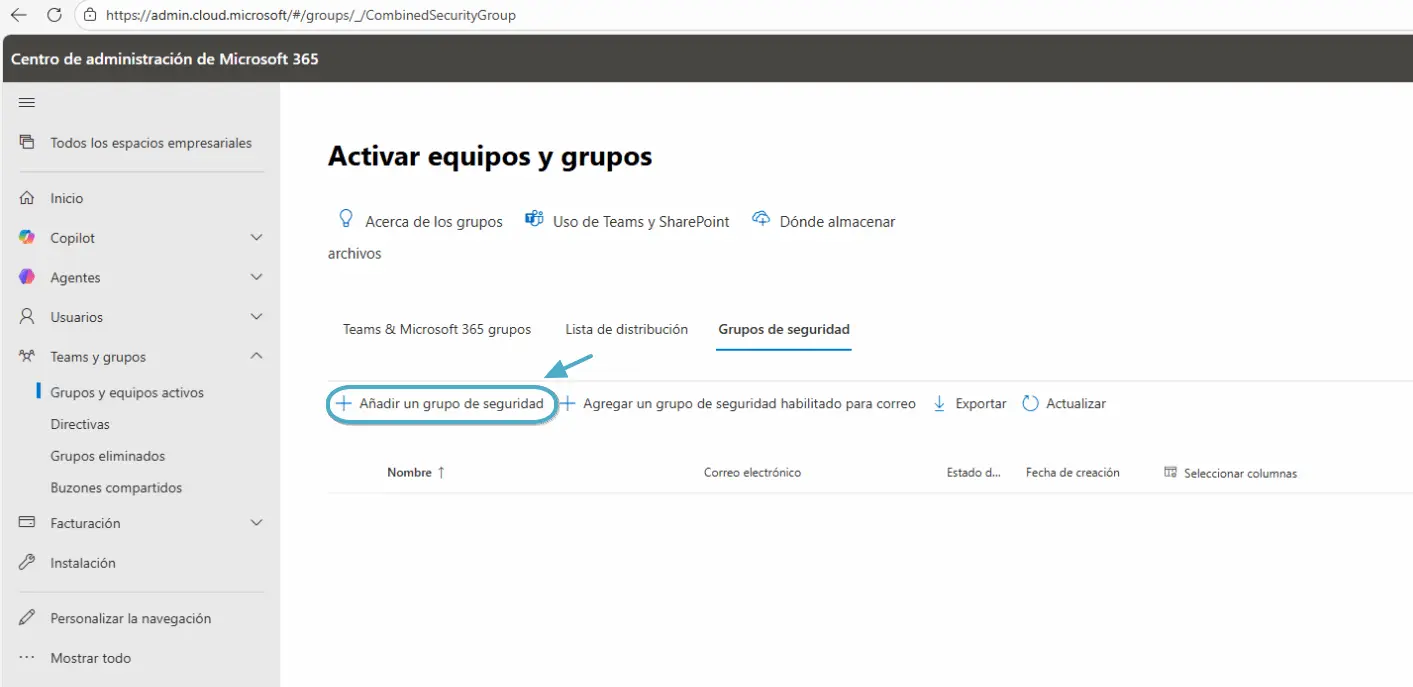
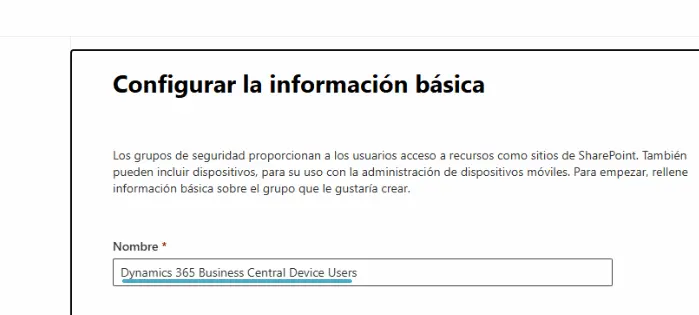
The group must be named exactly Dynamics 365 Business Central Device Users. It is important to use this exact name, as Business Central uses it to identify users with a Device license.
Add users to the group
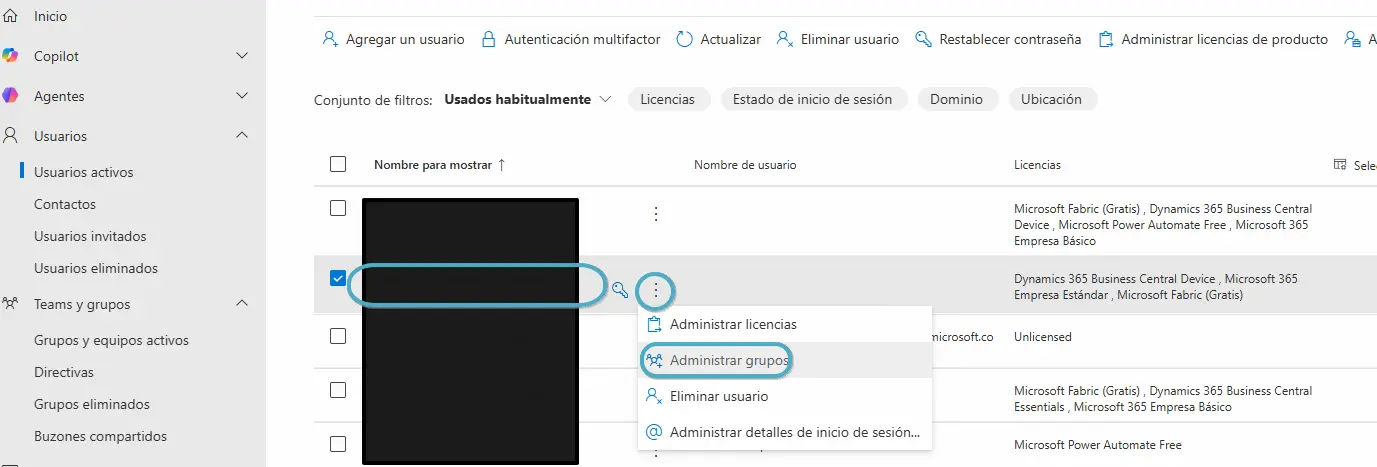
From the Microsoft 365 user list, select each user and go to:
Manage groups → Assign memberships → Dynamics 365 Business Central Device Users.
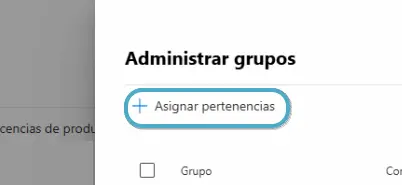
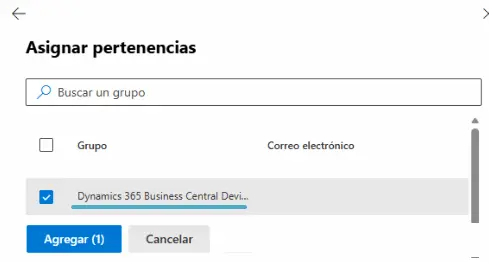
The group is now configured. Users will be able to access BC without being individually assigned an Essentials or Premium license, provided the limits and conditions of the purchased Device licenses are respected.
Review the Global Administrator role
If the user was assigned the Global Administrator role, they will be able to access Business Central and view information, but not create items or orders. It is therefore important to clear this option for users who belong to the Device license group.
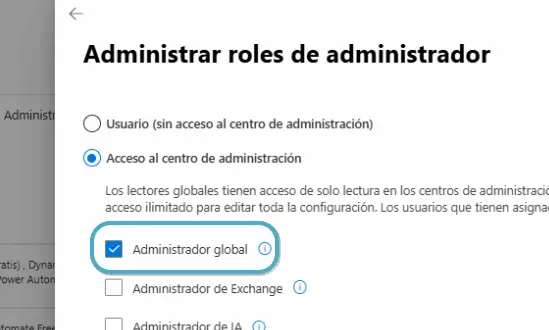
This role allows users to manage users, licenses, and other Microsoft 365 services, so it should not be assigned to users who simply need to work with Business Central.
It is worth checking this point if we encounter permission issues, although Microsoft does not explicitly document it as a general incompatibility with Device licenses.
Features and terms of use
According to Microsoft’s official documentation, this license does not provide the same features as Essentials. It is primarily intended for warehouse, production, and point-of-sale operations, so it is important to review the use rights before purchasing it.
Personally, in the implementations where we have configured it, we have not encountered technical problems performing the operations our clients needed. However, we need to distinguish between what Business Central allows us to do and what the license actually permits.
Before using it, we should therefore check that the operations users will perform are covered by Microsoft’s licensing terms.
An idea to keep thinking about.
Explore more articles →