
Standard vs. AI-assisted bank reconciliation in Business Central
Bank reconciliation in Business Central has worked much the same way for years. If the transactions on the bank statement match the bank account ledger entries posted in the ERP, reconciliation simply clears the Open checkbox on those entries. And if a transaction appears on the statement but hasn't yet been posted in BC, you can post and reconcile it as part of the same process.


With Copilot, Microsoft has added a few features that take us a step beyond traditional automatic matching.
I’ve been running some tests and wanted to share the differences between standard and AI-assisted reconciliation. The objective is still the same. We want to clear the Open checkbox, and AI can help us find and match the entries.
Setting up and importing the bank statement
Before we start, we need to import the transactions from our bank. We can use a Norma 43 (N43) file for this, although some banks let us export transactions in other formats, such as Excel or CSV.
I won’t go into all the settings needed to import the file, but these are the main ones.
-
Data Exchange Definition: This defines how to read the bank file, including its columns, field lengths, dates and amounts, and how they map to fields in Business Central.
-
Bank Export/Import Setup: This is where we link the data exchange definition to an import format code.
-
Bank Account Card: On the Transfer FastTab, we select the format we’ve set up in the Bank Statement Import Format field. We can set a different format for each bank and, unfortunately, that’s usually what we end up doing.
To make testing easier, here are two sample files you can use.
-
Imp _ Exp Data Exch Def & Map.xml is the N43 data exchange definition I used. You can import it directly from the Data Exchange Definitions page.
-
N43_prueba_5_movimientos_2025.txt is a sample bank statement with five fictitious transactions from 2025.
In addition to the standard file import, third-party apps can connect Business Central directly to banks and import bank account transactions automatically. That’s handy because it saves the user from having to download, handle and import text files.
For me, though, the bigger issue is the transactions in the file. When we import a bank statement, we bring in every transaction on it, and we have to deal with each one before we can post the reconciliation. If we can choose which transactions to import as we need them, we have more control, and it’s much easier to avoid reconciling the same transaction twice.
Standard bank reconciliation
As we’ve seen, bank reconciliation is essentially about matching the transactions on our bank statement to the bank account ledger entries posted in Business Central. In the ERP, we just open Bank Account Reconciliations and choose New.
Once we’ve imported the statement, the bank statement lines appear on the left and the bank account ledger entries posted in Business Central appear on the right.
Two actions on this page stand out to me.
1. Match Automatically
Business Central looks for matches between the bank statement lines and the bank account ledger entries. We can specify a tolerance in days to allow for differences between the dates.
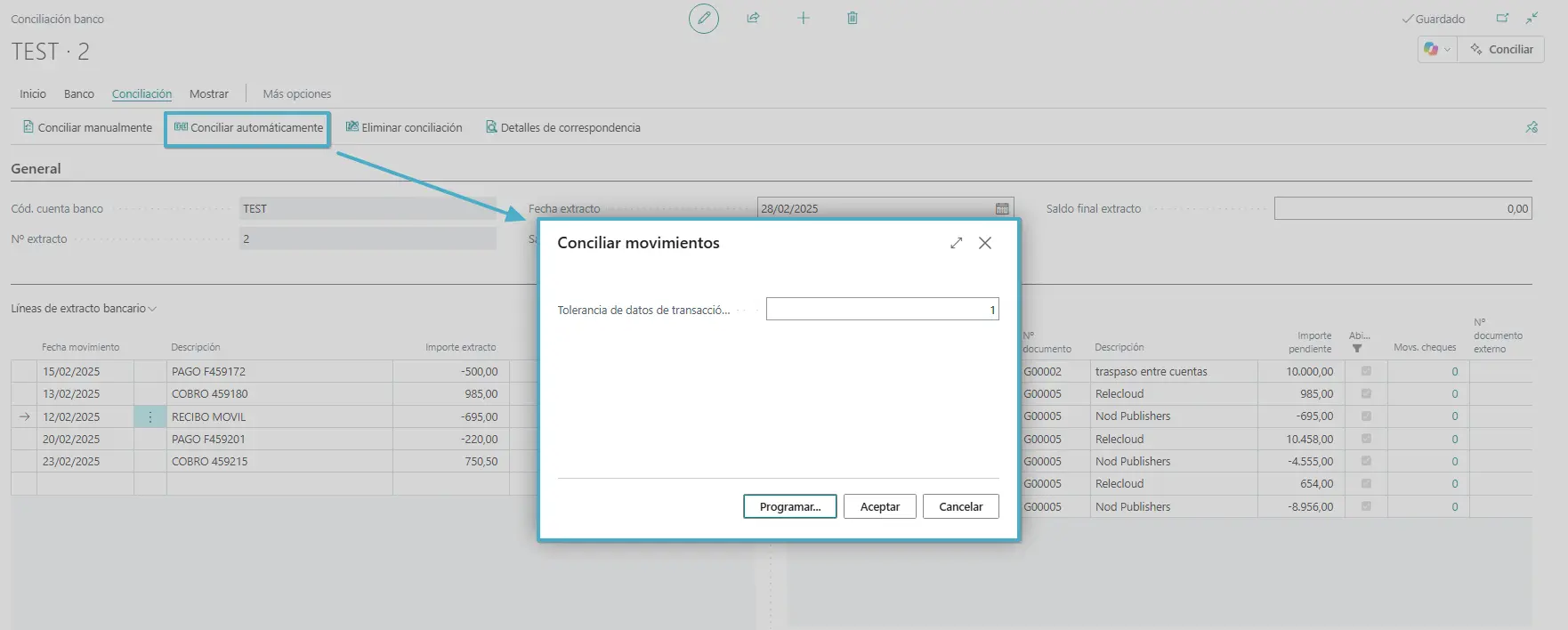
In this example, the system matches two transactions automatically.

2. Transfer to General Journal
This action is useful for transactions that appear on the statement but have no corresponding bank account ledger entry in our ERP. A bank fee or a payment we haven’t posted yet would be a good example. We can use Transfer to General Journal and post the corresponding entry, which will also be matched automatically.
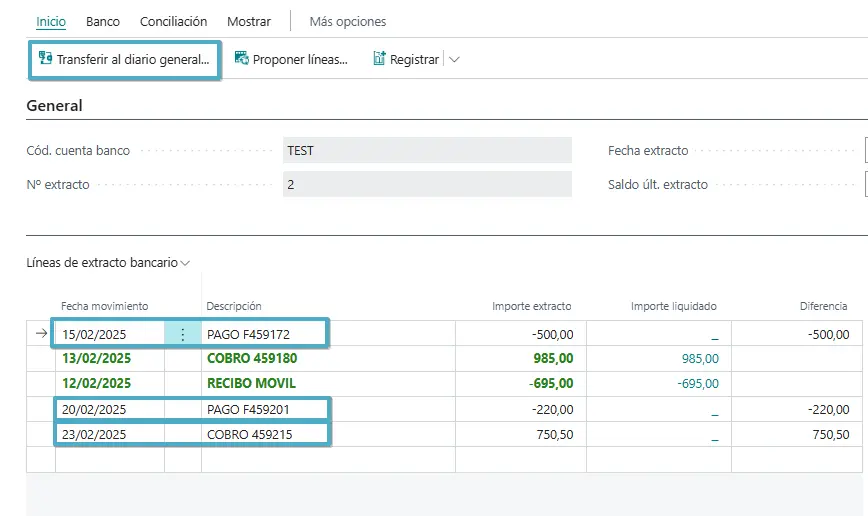
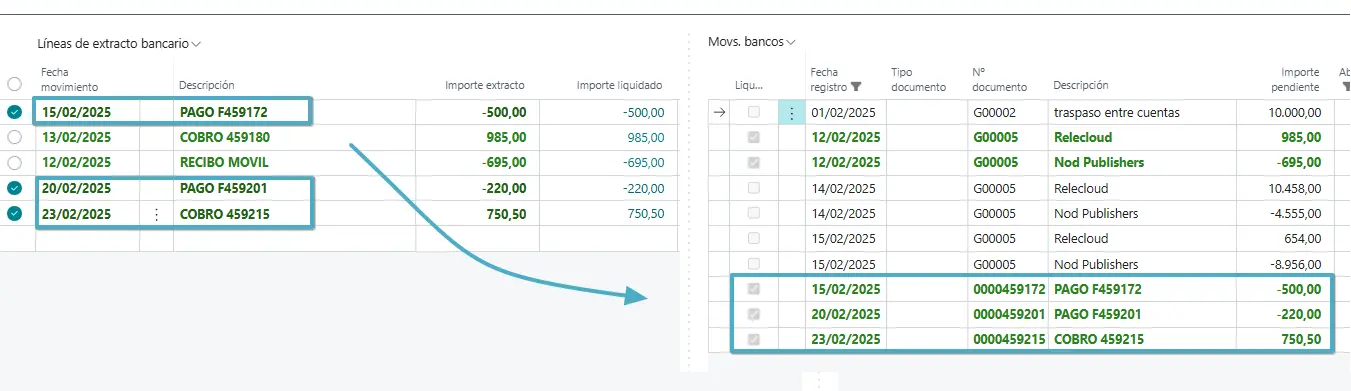
Once we’ve matched all the entries and checked the balances, we post the reconciliation. The bank account ledger entries are then closed, so the checkbox shown below is cleared.
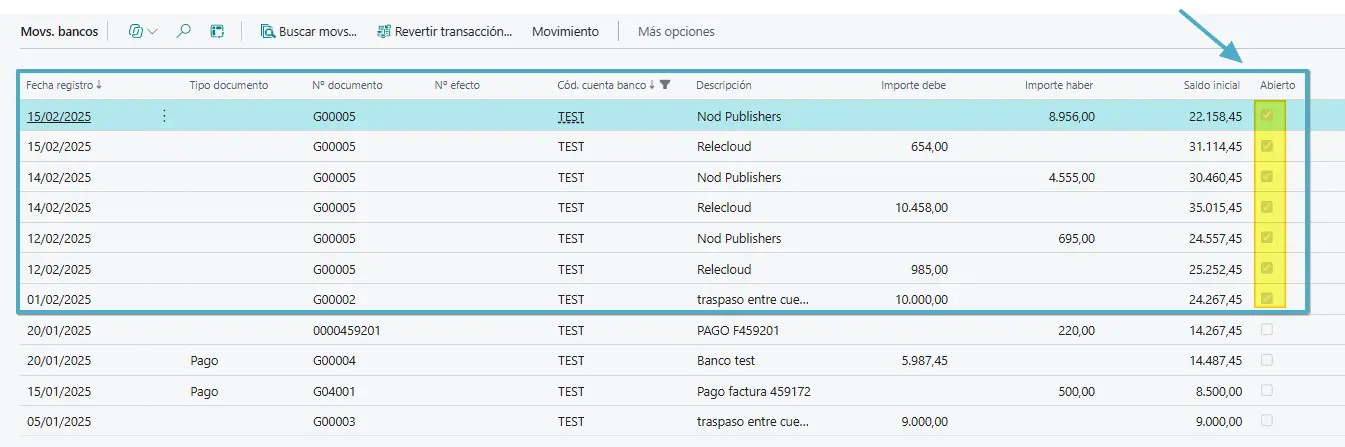
So far, this is all standard bank reconciliation.
AI-assisted bank reconciliation (Copilot)
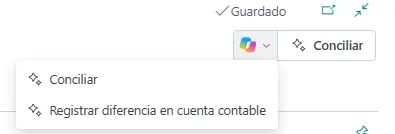
This is where it gets interesting. Business Central offers two Copilot actions.
-
Reconcile.
-
Post Difference to G/L Account.
1. Reconcile with Copilot
This feature combines traditional automatic matching with AI.
It first looks for matches it can resolve automatically. Copilot then tries to find matches for the remaining transactions.
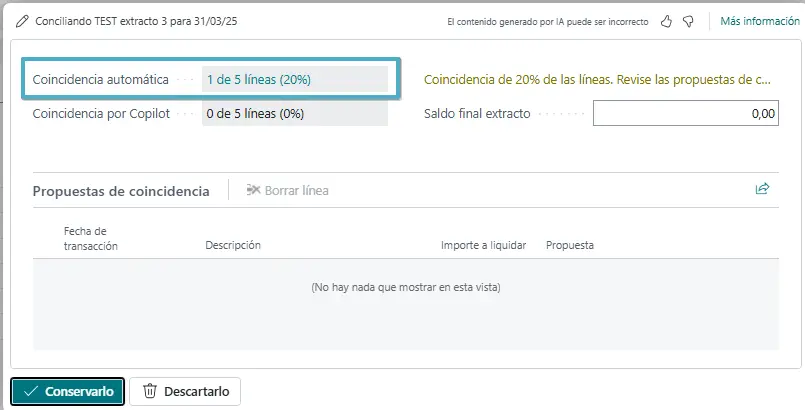
In the example below, automatic matching found the matches and there was no need to use AI.
In another test, though, I had two transactions of €5,229 each on the bank statement and a single entry of €10,458 in Business Central. Automatic matching couldn’t find a match, but Copilot suggested matching both statement lines to the €10,458 entry.
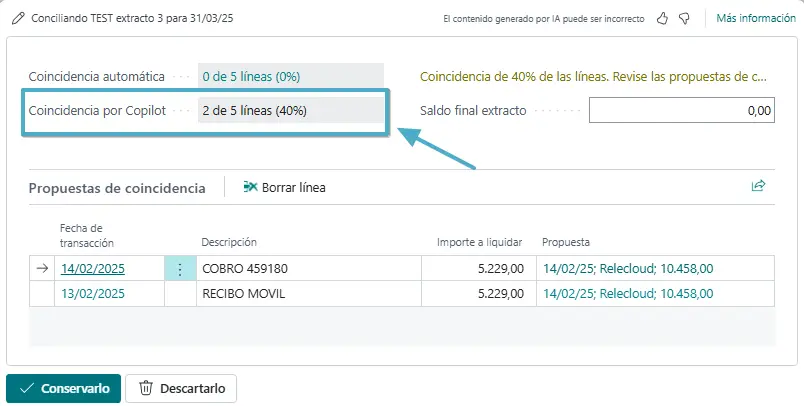
In other words, it found a match that I would have had to look for manually with standard reconciliation. BC uses AI to look at dates, amounts, descriptions and other details. It then suggests entries that look like a match for the transactions on the bank statement. That can save the user quite a bit of time finding and matching entries by hand.
2. Post Difference to G/L Account
I found the second feature interesting as well.
When a bank statement includes transactions that haven’t been posted in Business Central, Copilot can analyze their descriptions and suggest the G/L accounts to post them to.
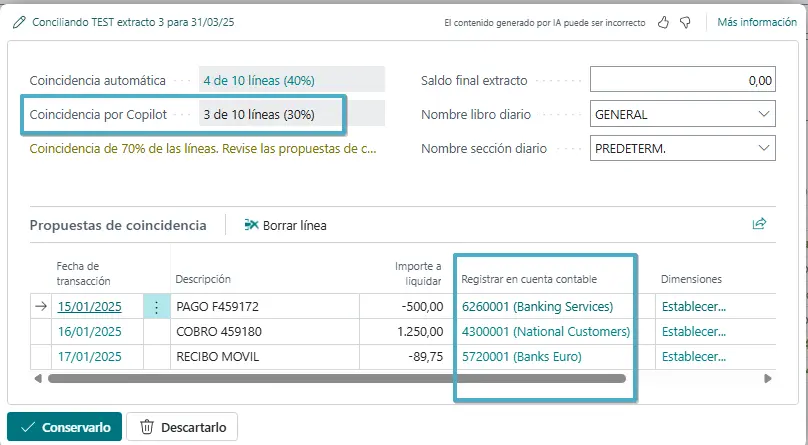
Instead of manually transferring the transactions to the general journal, we can review the suggested accounts, specify the journal template and batch, add dimensions where appropriate and post the entries directly from this feature.
We can also save mappings between bank transaction descriptions and G/L accounts for use in future reconciliations.
Conclusion
Bank reconciliation still involves comparing the transactions on the bank statement with the entries posted in Business Central.
The difference is that standard reconciliation uses rules to find matches, while Copilot uses AI to interpret the transactions those rules couldn’t match.
We still need to review the suggestions because AI can get matches wrong. But it can save us quite a bit of manual work, especially when we have a lot of bank transactions or differences that are hard to pinpoint.
And I think this is one of the most interesting uses of AI in Business Central: complementing the standard features rather than replacing them.
Incidentally, there’s also the Payment Reconciliation Journal, which lets us work directly with customer and vendor ledger entries. But that’s a feature for another article.
An idea to keep thinking about.
Explore more articles →