
5 Copilot features in Business Central you should know about
Marketing text, bank reconciliation, summaries, field suggestions and data analysis: five Copilot features we can use in standard Business Central.


A few days ago, we discussed the different ways we can incorporate artificial intelligence into our Business Central customizations, whether through agents, external models or directly from AL code.
But alongside all these development options, Microsoft already includes some AI features in standard Business Central. And I’m not just referring to Copilot chat, but to tools that make certain tasks easier.
In this article, we’ll go through five of these features, taking BC version 29 as our reference as of November 6, 2026.
1. Generating marketing text for items
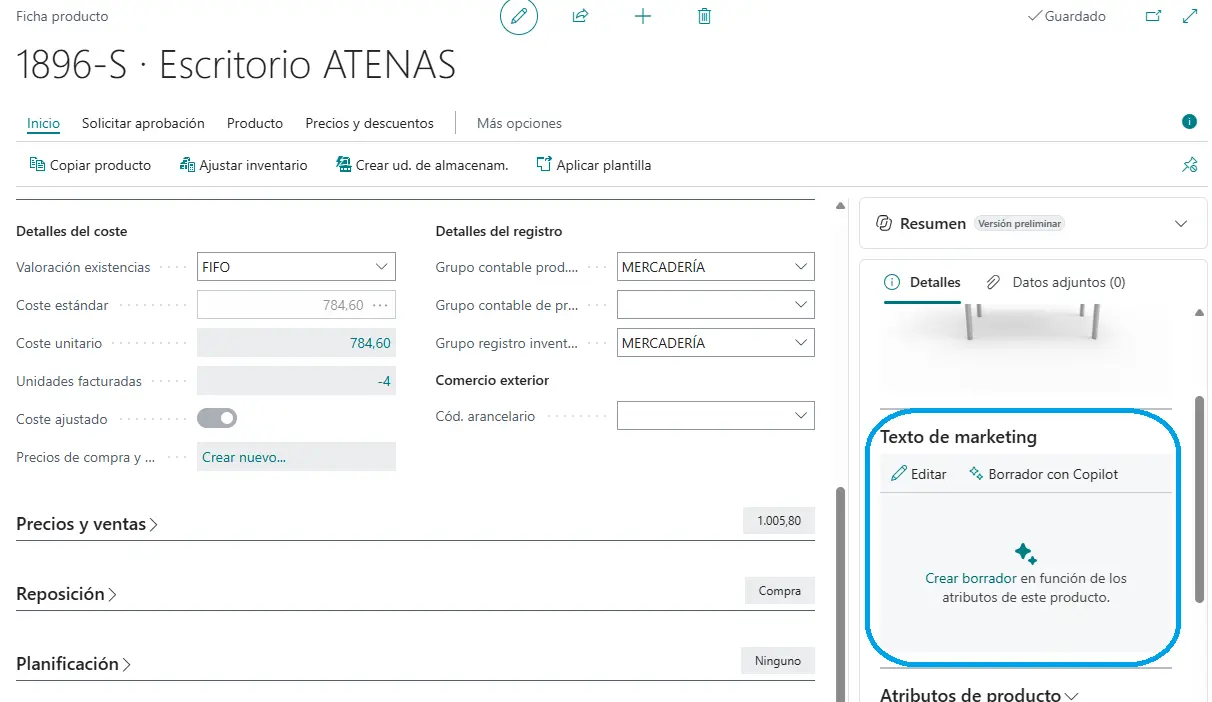
This was one of the first Copilot features Microsoft introduced in Business Central.
From the item card itself, we can use AI to automatically generate a marketing description based on the data we have entered, such as the item’s category, attributes, dimensions or materials.
For example, imagine we have an online store with hundreds of items. Instead of writing a description for each one manually, we can ask Copilot to generate the text using the item’s information.
We can also adjust the tone, length or format of the text before saving it.
2. AI-assisted bank reconciliation
Bank reconciliation is another area where Microsoft has introduced Copilot.
As we know, Business Central can automatically match bank statement lines with entries posted in the ERP. But when the standard rules can’t find certain matches, we have to look for them manually.
With Copilot, we can go a little further, as AI can analyze the unmatched transactions and try to find relationships that traditional automatic reconciliation hasn’t identified. For example, it may suggest matching several bank statement lines to a single Business Central entry, provided it finds a relationship between them. It can even suggest G/L accounts for posting statement transactions that don’t yet exist in the ERP.
We’ve already explored this feature with real examples in the article Standard vs. AI-assisted bank reconciliation in Business Central.
3. Automatic record summaries
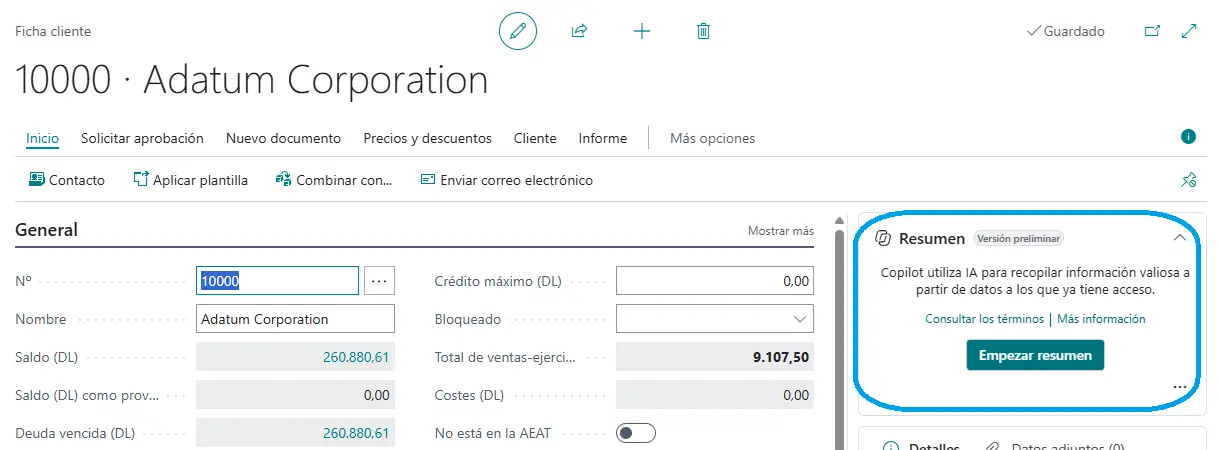
Another interesting feature is the ability to generate summaries of Business Central records.
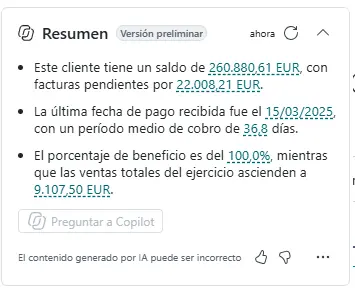
For example, when we open a customer card, an item card or a sales order, Copilot can analyze the available information and show us a short summary of the details it considers most relevant.
These summaries appear in the FactBox pane and use both information from the record itself and related data.
The useful thing is that it doesn’t just repeat the fields on the card. It tries to highlight information that can help us understand the record’s situation without having to navigate through different pages.
4. Autofilling fields
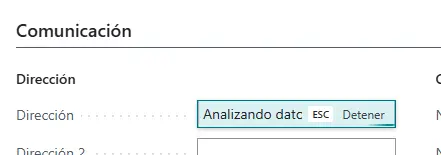
Microsoft has also introduced a feature that lets us use Copilot to fill in fields on our cards and documents.
For example, imagine you’re creating a new contact. Copilot can analyze the data we’ve already entered and suggest values for the remaining fields.
What caught my attention most is that Copilot won’t just use information from Business Central. It will also be able to draw on publicly available information on the internet to suggest details such as addresses, phone numbers or websites.
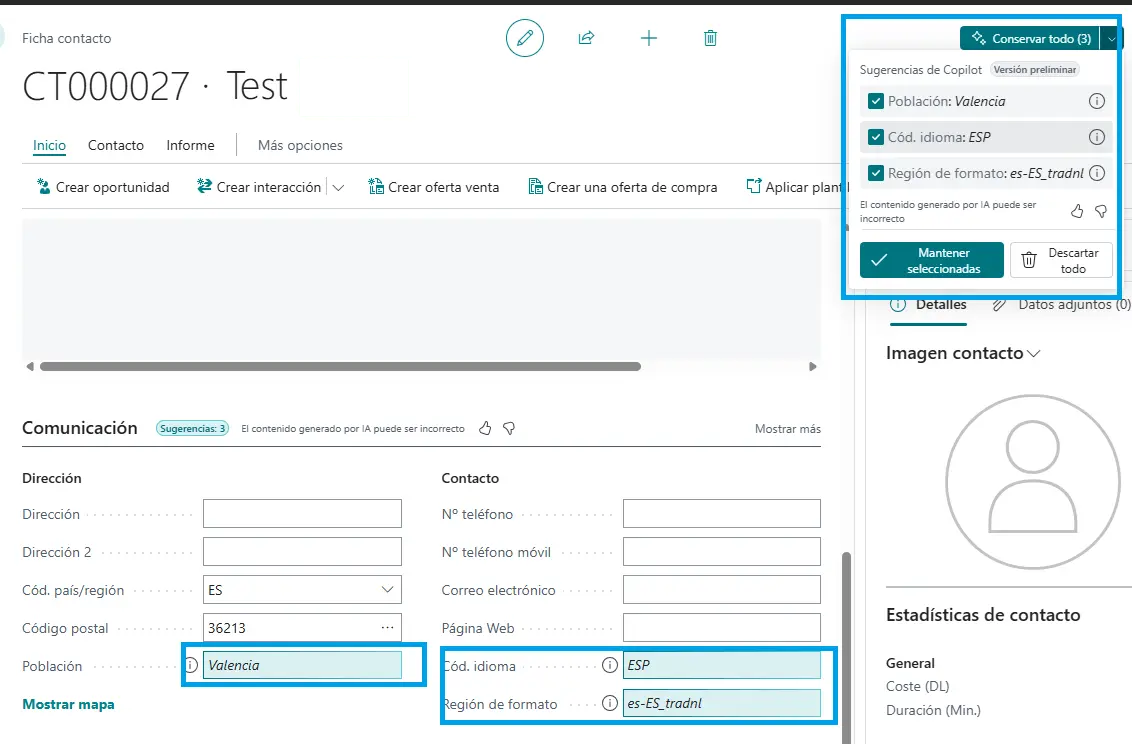
At the moment, I don’t find this particularly useful from a consulting perspective. But I suspect that, in the not-too-distant future, we’ll be able to validate customer and vendor data directly from the application, especially address and contact details.
5. Data analysis using natural language
This is probably one of the five features I find most interesting.
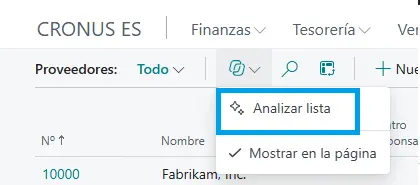
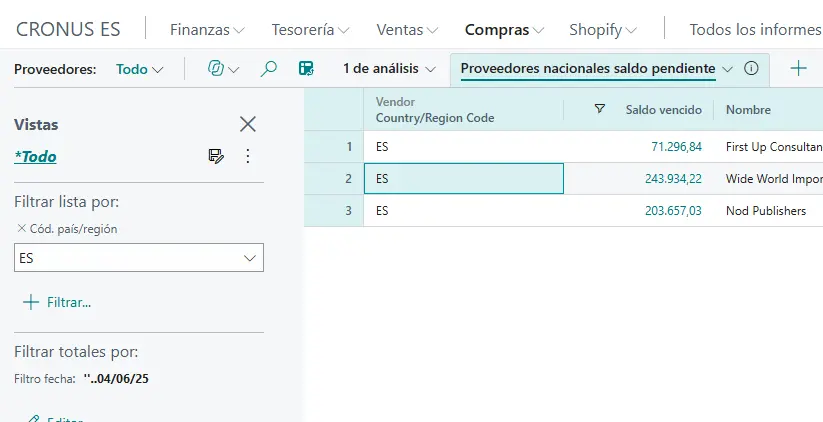
Business Central has an analysis mode that lets us group, filter and summarize information directly from list pages, without having to export the data to Excel.
With Copilot, we can create these analyses simply by explaining what we need.
For example, imagine we’re looking at purchase entries and want to group them by vendor, calculate the total amount for each vendor and sort them from highest to lowest.
Instead of manually setting up the columns, groupings and filters, we can describe the analysis we want to Copilot and let it suggest the structure.
We can then modify the result or keep giving instructions to refine the analysis.
It doesn’t replace Power BI, nor is it intended to, but it can be quite useful for analyzing information directly in Business Central without having to prepare a dedicated report.
An idea to keep thinking about.
Explore more articles →