
How to configure allowed posting dates in Business Central
It is common to want to restrict the dates on which users can post documents or journal entries in Business Central, particularly to prevent errors or stop entries from being posted to periods that have already been closed.

To do this, Business Central provides a setting that already existed in Navision, Microsoft’s former ERP, which we can find on the “General Ledger Setup” page.
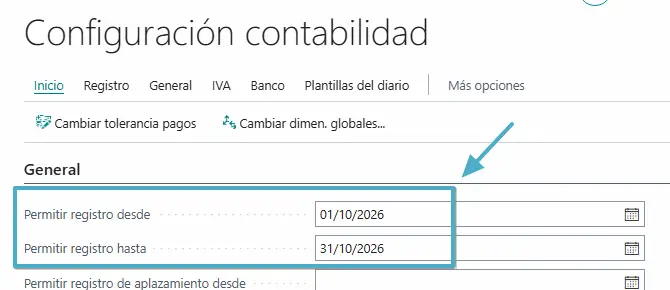
This setup is quite straightforward. Using the “Allow Posting From” and “Allow Posting To” fields, we can define a date range within which all users can post documents and general ledger entries.
If either of these fields is left blank, the system treats that end of the range as unrestricted, meaning that entries could be posted with dates far in the past or future.
When a user tries to post a document with a posting date outside the allowed range, Business Central will display an error message. This is a fairly common error, particularly at the start of a new year or month:
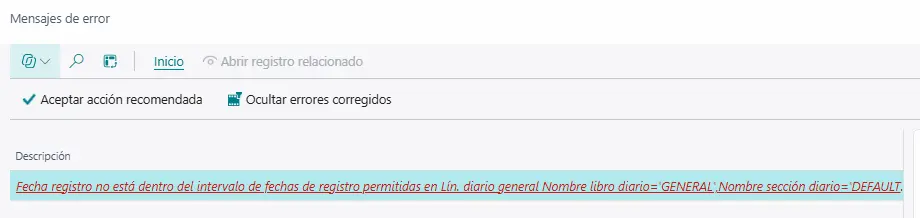
The problem with this setup is that, when we use fixed dates, we have to change them manually to open up the following accounting periods. This can be quite tedious if we have to do it every month.
We also need to take particular care when we have automated processes running through job queues that post documents or journal entries, since these processes can also fail if they try to post with dates that are not yet allowed. After all, these tasks run in the context of a licensed BC user and are subject to that user’s posting restrictions.
Configuring posting dates by user
The dates set in “General Ledger Setup” apply to all users in the company by default, although BC allows us to define different date ranges for specific users on the “User Setup” page.
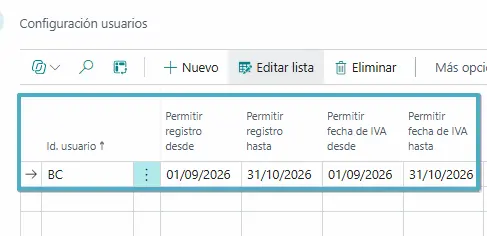
This allows us to let certain users post entries to different periods from everyone else. For example, we can allow accounting users to continue posting adjustments to the previous month, while everyone else can only work in the current month.
Note: the dates configured in “User Setup” take precedence over those set in “General Ledger Setup”. In other words, if we have 100 users and only want to set a different range for one of them, we simply configure the general range in “General Ledger Setup” and define the exception for that specific user.
Date formulas: automating allowed posting periods
I recently discovered an improvement in the latest versions of Business Central that I found quite interesting: the ability to use date formulas to calculate allowed posting date ranges automatically.
So, instead of entering fixed dates, we can use formulas that are calculated automatically and avoid having to update the ranges manually every time the month changes.
For example, in “User Setup” we can define the following formulas:
- Allow Posting From Date Formula:
-PM - Allow Posting To Date Formula:
PM
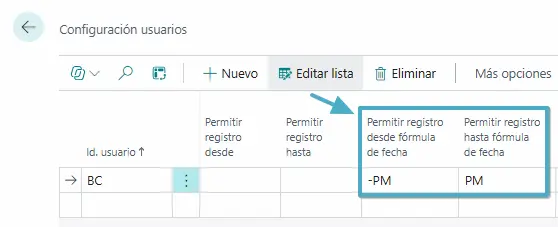
With this setup, if the work date is 21/10/2026, Business Central will allow entries to be posted from 01/10/2026 to 31/10/2026.
When the work date moves into November, the range will automatically be calculated as 01/11/2026 to 30/11/2026, without having to change the setup.
What makes this useful is that we can build more complex formulas, allowing us, for example, to post entries for the current month and part of the previous month.
These formulas are also available not only in “User Setup”, but in “General Ledger Setup” as well:
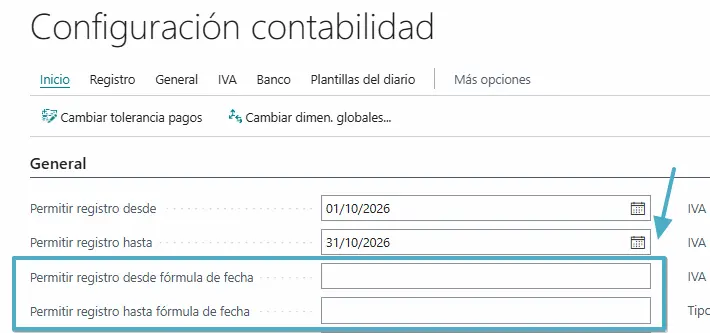
There is an important detail to bear in mind: the formulas are calculated using the Business Central work date as a reference, which is not necessarily the current system date. Since users can change their work date in “My Settings”, this option is less restrictive than setting fixed dates. We therefore need to take this into account if we require strict control over accounting periods.
In any case, I find this a particularly useful feature for avoiding the need to remember to change the allowed posting date ranges manually every month.
Microsoft’s official documentation covers both the setup of allowed posting periods and the different date formulas we can use:
An idea to keep thinking about.
Explore more articles →